
1. Start here
Take an insurance enquiry from the client record to a bound Policy and delivery of its documents. This guide follows the Operations route using the platform's Submission, Response, Quotation and Firm Order Slip actions.
- Client and Deal
- Submission and Responses
- Quotation and client acceptance
- FOS to the insurer
- Insurer agreement and binding
- Policy and client documents
The refreshed screenshots and videos follow Hawthorn Technical Services Ltd, a fictional engineering consultancy seeking Professional Indemnity cover from 1 November 2026 to 31 October 2027. Names, terms, evidence and documents are training examples. Use the actual instructions and evidence for your placement.
Before you begin
- Sign in with your Operations account. Your administrator must have configured the Product, currency, insurer profiles, Underwriters and document/email templates you will use.
- Have the client's identity, contacts, risk information and requested cover ready.
- Check the content and recipients of every outward document before sending.
Operations includes Support's preparation capabilities and the relevant sending, acceptance and binding actions. Permissions may be customised. Billing, Payments and Reporting are outside this guide and belong to a separate Accounting workflow.
Links such as Open Deals are examples. Substitute your organisation's platform domain for https://your-platform-domain.com. Record numbers in screenshots are examples, not numbers to enter.
Prepared means reviewed for use. Sent records delivery. Client acceptance records the client's instruction. Insurer agreement records the insurer's confirmation. Bound records the insurance outcome and creates the Policy.
Other starting points
| Situation | Guide |
|---|---|
| You already have insurer terms and want to enter them without a Submission/Response. | Deal to Quotation |
| You want AI-assisted capture from insurer evidence. | Create a Quotation with AI, from a genuine Response or a direct source upload. |
| Binding was completed outside the platform Quotation/FOS workflow. | Deal to Policy |
Watch the workflow
Select an image or video to open the in-page viewer. Use Close or Escape to return, or open its original file in a new tab. The written guide remains usable without video.
2. Create or find the client and contacts
- Open Entities → Clients and search first. Reuse the existing record when it represents the same organisation or person.
- If needed, choose Create Client, then Company / Organisation or Individual / Person.
- Enter the Display name and relevant legal name, address and Entity profile information. Record the business description and risk information accurately.
- Add the primary contact's name and email, with telephone and role/title where useful.
- Select Create. Review the saved Overview, then Contacts. Maintain further contacts through that tab.
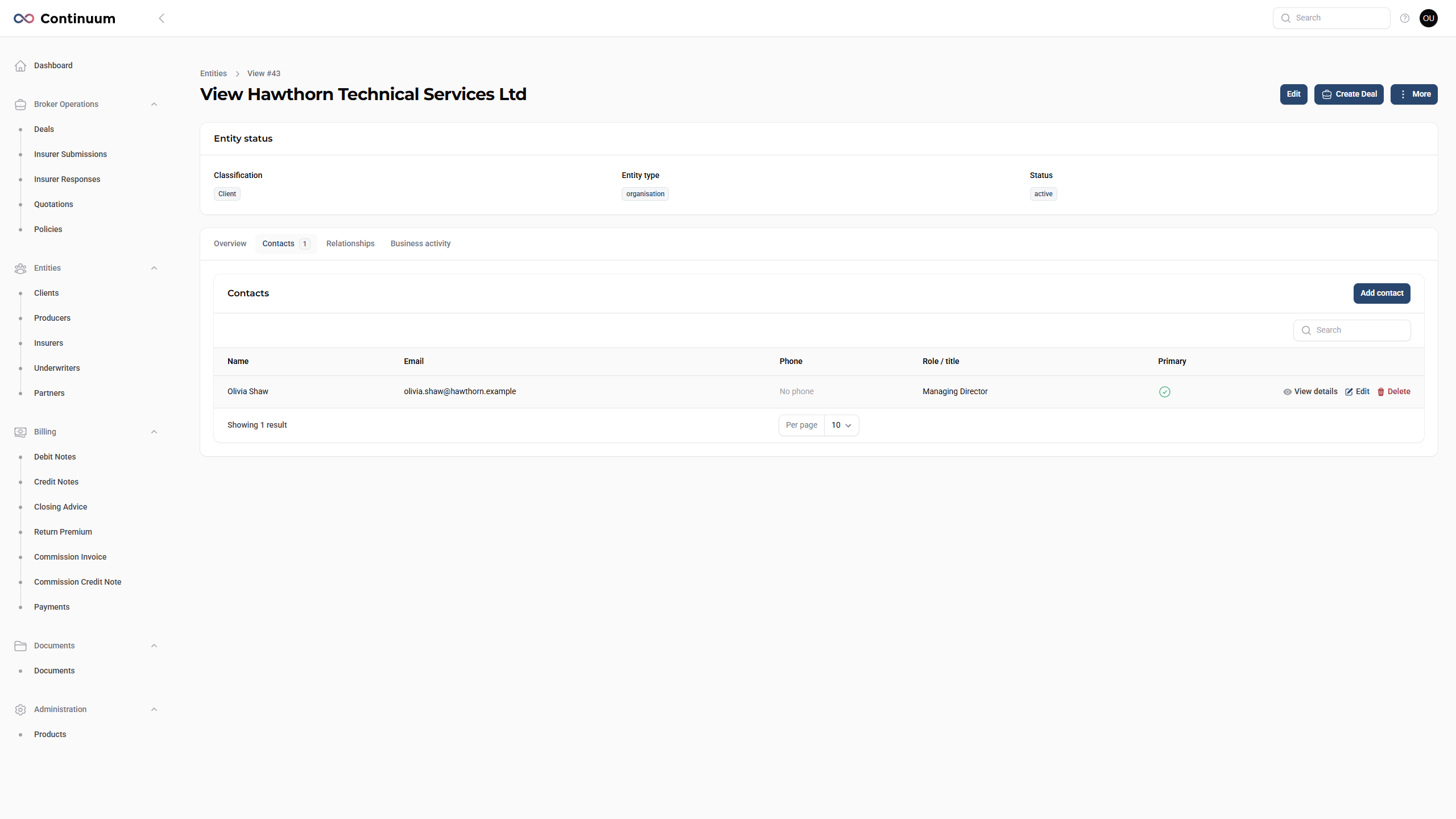
Entities may also represent Producers, Insurers and Partners. Maintain those through the relevant navigation pages when required. An insurer needs its insurer profile and suitable Underwriters; an Underwriter and a primary client contact serve different recipient roles.
Check: the client exists once, with the intended contact and a usable email address.
3. Create and complete the Deal
- From the client record choose Create Deal. This carries the client into the Deal as its insured.
- Enter a useful Internal Label, select the Product and initial Stage, and choose New Business as the Deal type. Enter an optional Year only when useful.
- Check currency, owner and requested inception/expiry dates. Select the Product's applicable Territory and Jurisdiction.
- Complete relevant Product Fields and current-insurance information. A displayed fallback such as “To Be Confirmed” is not an entered answer.
- Keep broker-only context in Internal notes. Put information needed by insurers in the outward risk fields, Submission or supporting documents.
- Select Create. Check the Overview and insured participant. Use Risk details to review the risk information and related Entity controls.
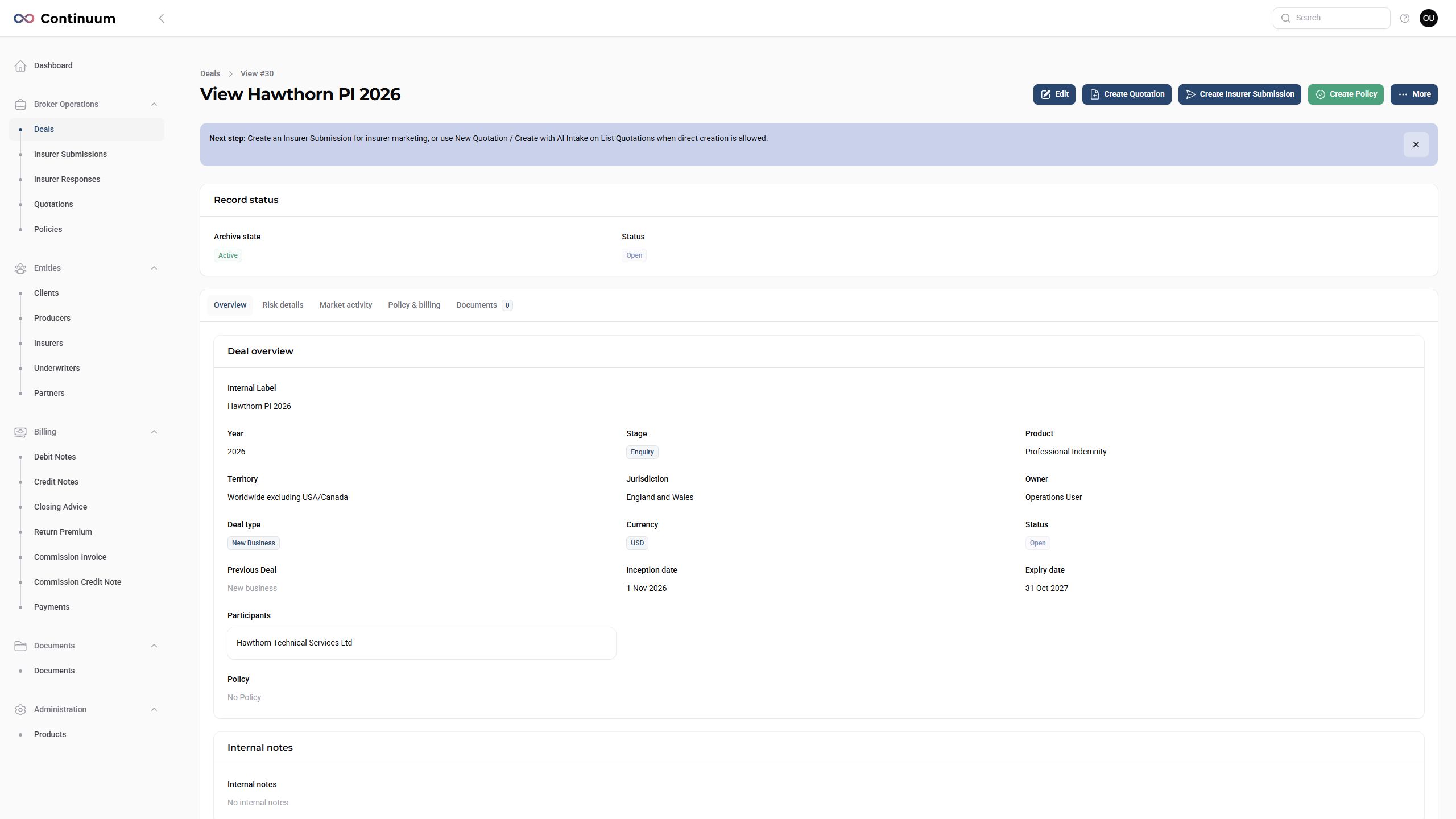
Open, On Hold and Lost classify the opportunity. Stage describes workflow progress. Policy state and Deal Archive are separate again. Binding does not change the opportunity classification to “Placed”.
Use Edit to correct the Deal. If you start from the Deals list, explicitly add/check the insured relationship before marketing. Use Documents for supporting files, or upload them when creating the Submission. Currency flows into the Quotation and Policy.
Check: insured, contact, Product, currency, dates and outward risk information are ready.
4. Prepare and send the Insurer Submission
4.1 Create the pack
- On View Deal choose Create Insurer Submission. If one already exists, open it: the Deal has one Submission pack.
- Keep it as Draft while assembling it. Add a response due date if needed.
- Review Introduction, complete Options Requested and check External Notes. These are outward-facing; Internal notes are separate.
- Select target insurers and suitable current Underwriter recipients, including named recipients or team mailboxes as appropriate.
- Select existing Deal documents or upload the supporting risk files. Choose Create.
4.2 Prepare, preview and send
- Review the saved Overview. Use Edit or Manage Markets to correct content, markets or recipients.
- Choose Mark Prepared and confirm. This validates preparation without sending an email.
- Open PDF and check the insured, Product, requested terms and outward wording.
- Choose Send Insurer Submission. Check the files actually attached, Underwriters, email count, subject and body. Select supporting files deliberately.
- Submit once and wait for the outcome. Open Delivery & responses to check saved delivery attempts and each market's outcome.
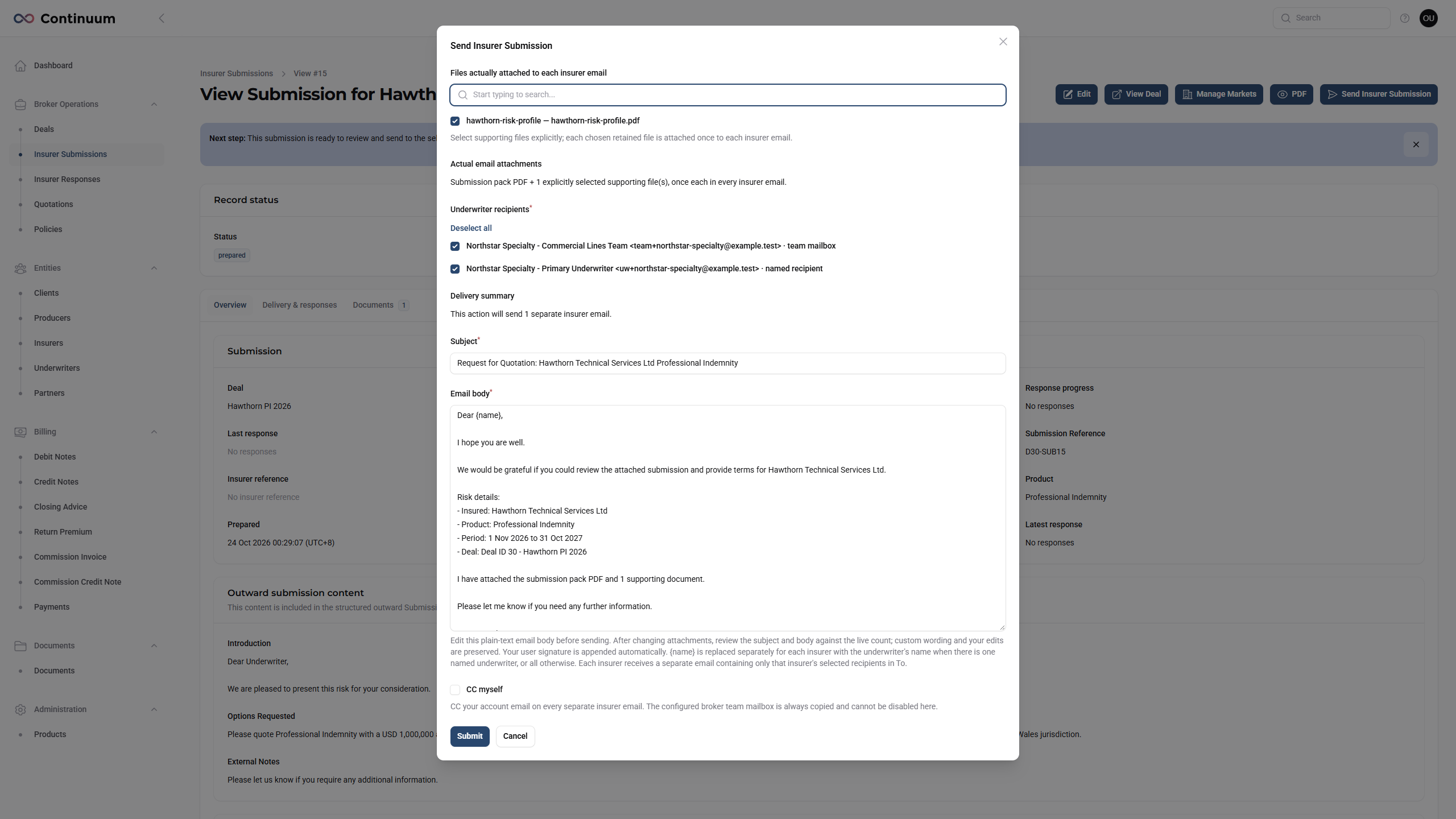
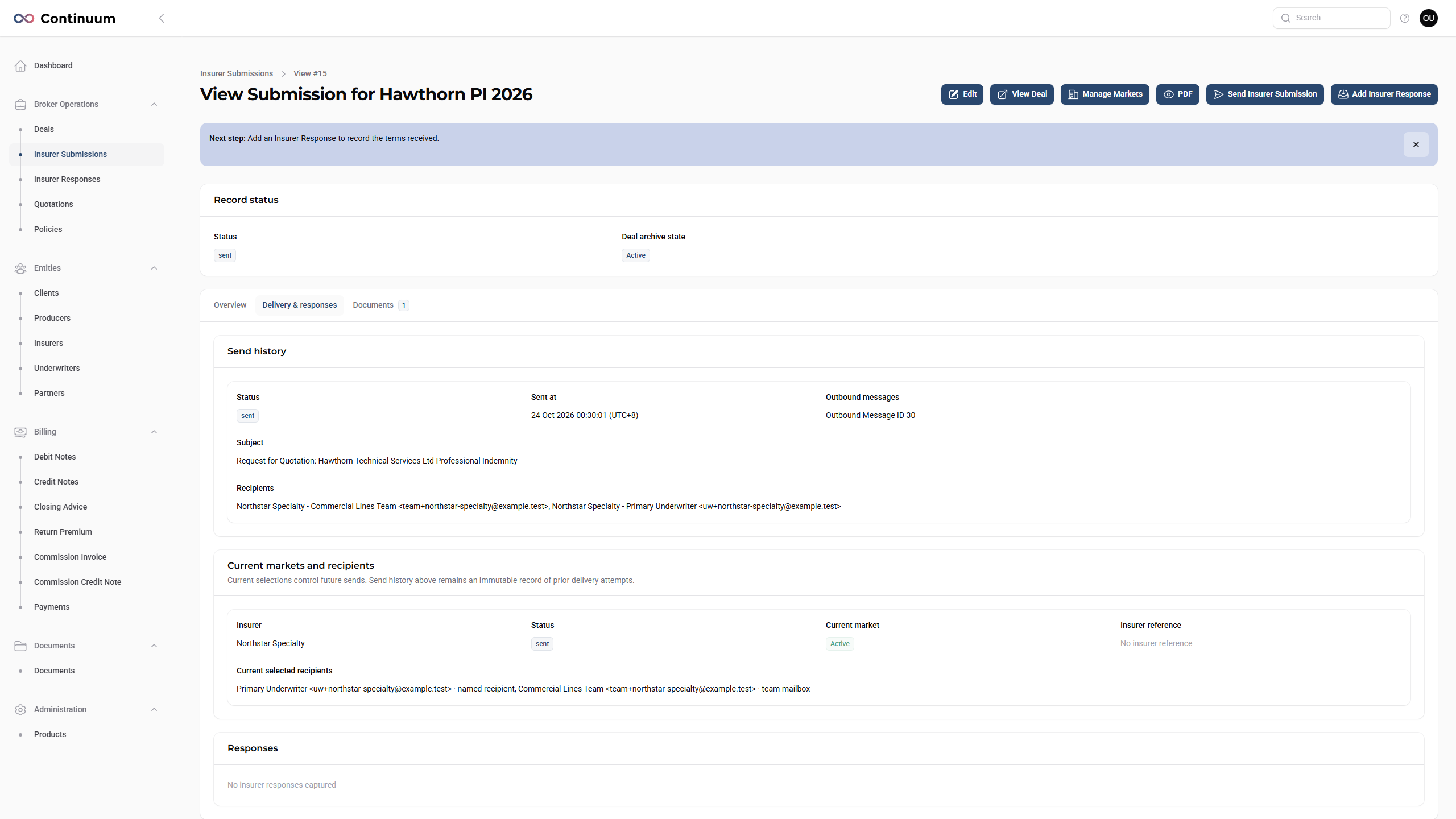
The platform sends a separate confidential email to each insurer group. Removing a market from current targeting preserves its earlier history and Responses.
Check: the intended market has a successful send recorded. Prepared alone is not delivery.
5. Record Insurer Responses
- Open the sent Submission and choose Add Insurer Response.
- Select the responding market, which must have a recorded Submission send.
- Record when the reply was received and a useful Internal Label.
- Enter copied response text and/or upload the original insurer document. Convert Word documents to PDF first.
- Add a useful document title/reference. Save, then open the saved Response from Delivery & responses and check its evidence.
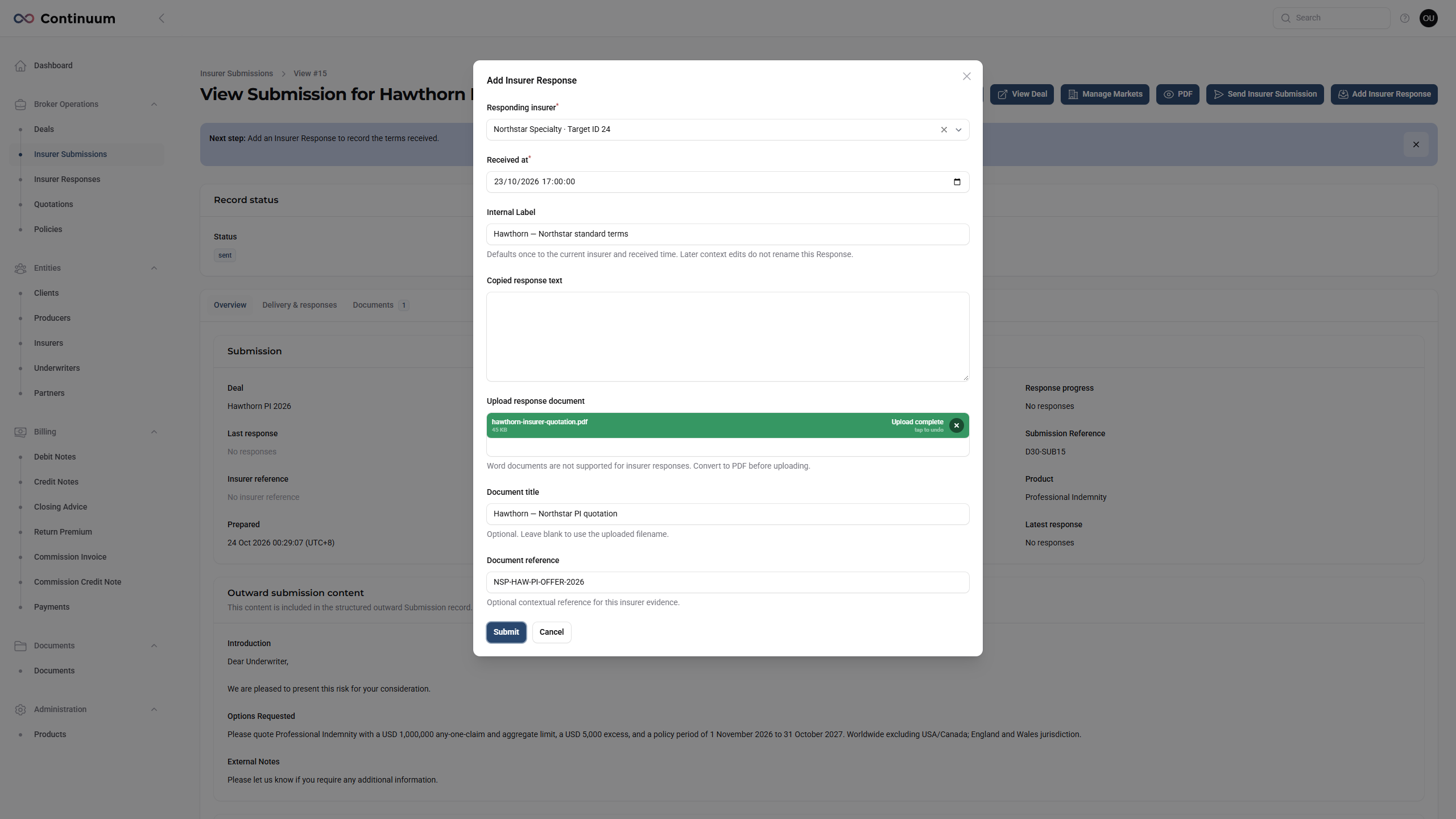
The platform does not collect replies automatically from an insurer mailbox. The Response has Overview, Quotations and Documents tabs. After source use, its label can be maintained separately where allowed; do not treat that as permission to rewrite evidence already used in a Quotation.
Check: the Response belongs to the right market, with the correct received time and retained source.
6. Create and review Quotations
- Open the genuine Response and choose Create Quotation. AI extraction runs in the background from its retained source.
- Read the warnings. If several complete offers are found, select one and choose Review selected option.
- Check the Internal Label, insurer, dates, validity, currency and reference against the original evidence.
- Review premium and Commission %. Commission Amount is calculated from those inputs. Check any explicit overall limit and excess.
- Review the independent Quoted terms. Requested Deal values may initialise them but do not prove insurer agreement. Correct or clear unconfirmed values.
- Review the complete Coverage and terms document, including tables, qualifications, conditions and exclusions. Use Enlarge editor when helpful; keep broker-only information out of outward wording.
- Reduce the editor and choose Create. Review the saved Overview and Terms tabs and the generated PDF.
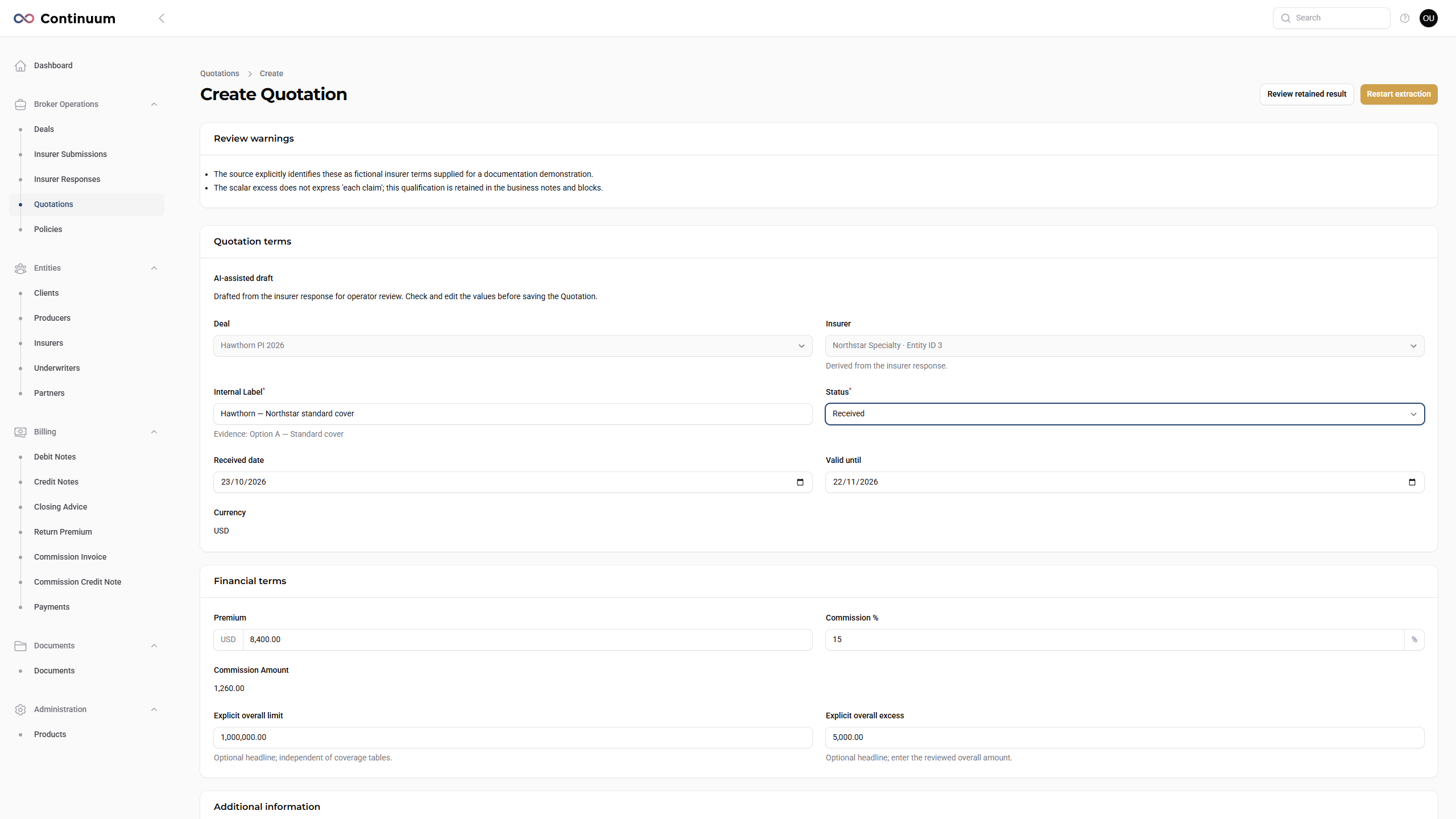
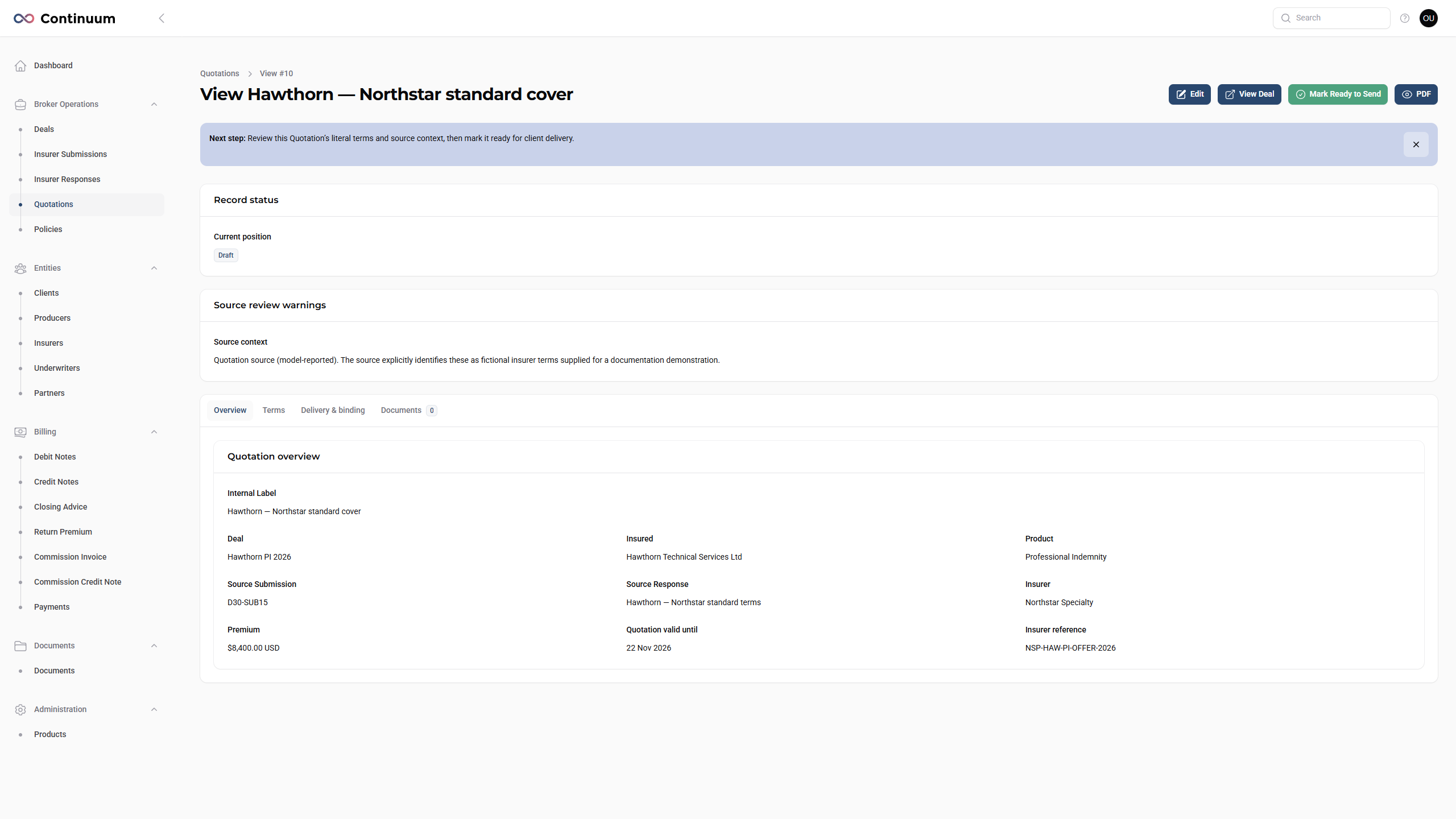
The example removes broker commission wording from the outward document while retaining commission in the internal financial fields. It also clears an unconfirmed quoted Product Field. See Create a Quotation with AI for source selection, whole-offer review and retained-result recovery.
Check: one reviewed Draft is saved, preserving its source relationship and the intended complete offer.
7. Send Quotations and record client acceptance
7.1 Prepare and send
- Review Terms and PDF, then choose Mark Ready to Send and confirm. This advances preparation only.
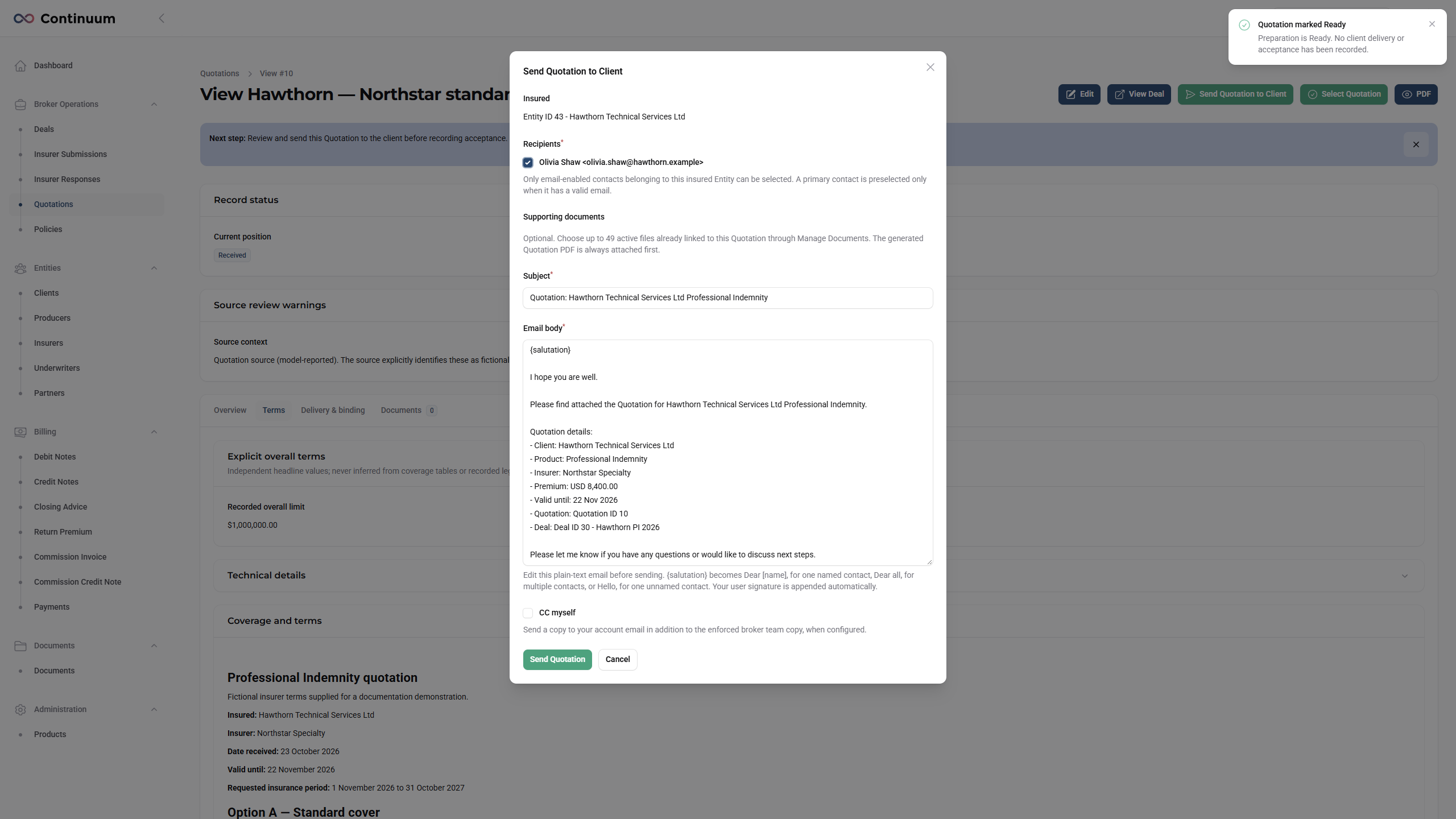
- Choose Send Quotation to Client. Check the insured, selected client contacts, generated Quotation and any optional supporting attachments.
- Review the subject and message, then choose Send Quotation once. Wait for the result and check delivery evidence.
7.2 Record the client's instruction
- When the client accepts a specific offer, open that exact Quotation and choose Select Quotation.
- Record the actual acceptance method and date/time, plus the instruction notes or a new evidence file as required.
- If no successful platform delivery is recorded, complete the delivery-disposition question truthfully. Do not imply that a platform send occurred.
- Choose Record Client Acceptance. Review Delivery & binding before preparing the FOS.
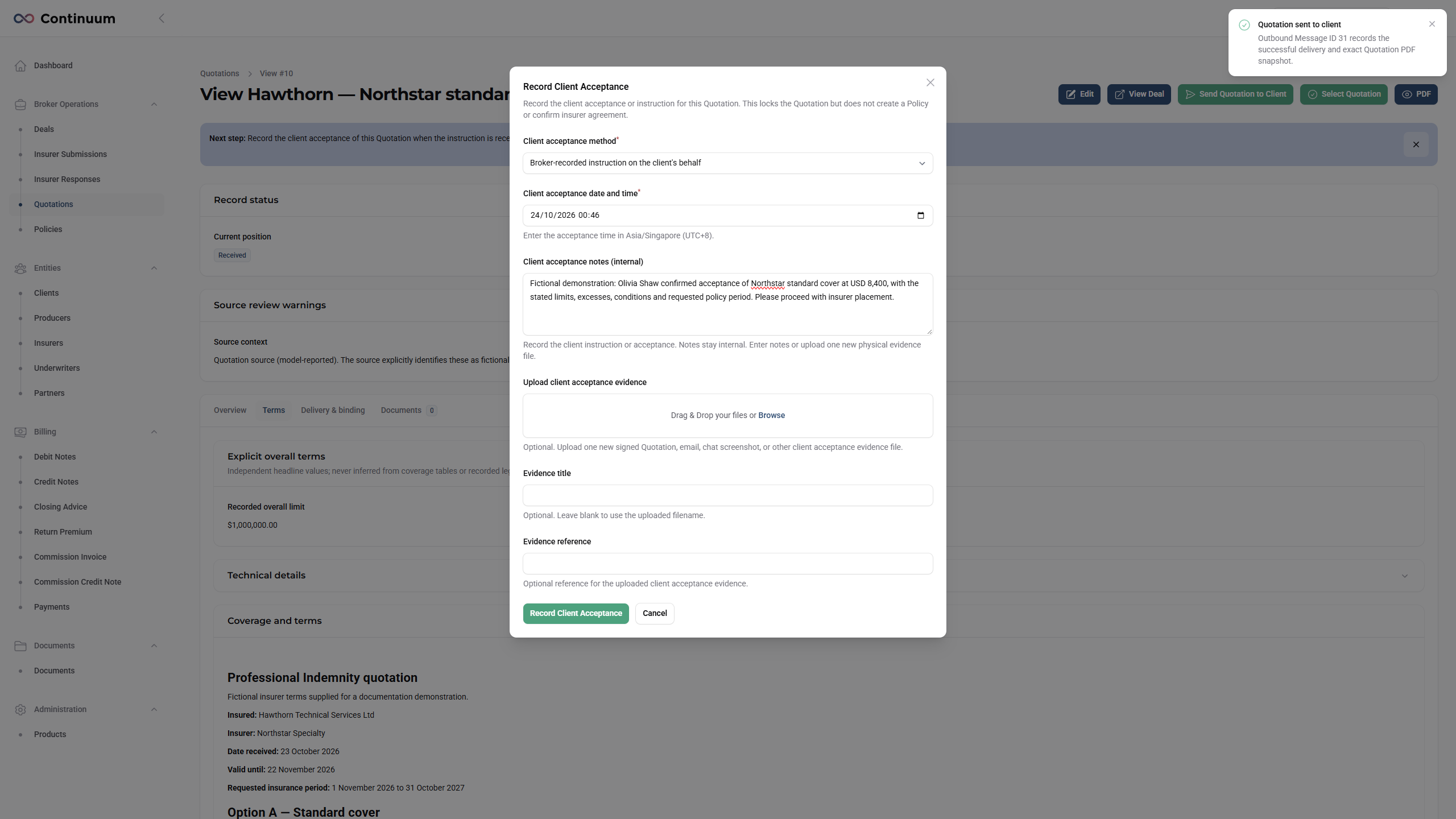
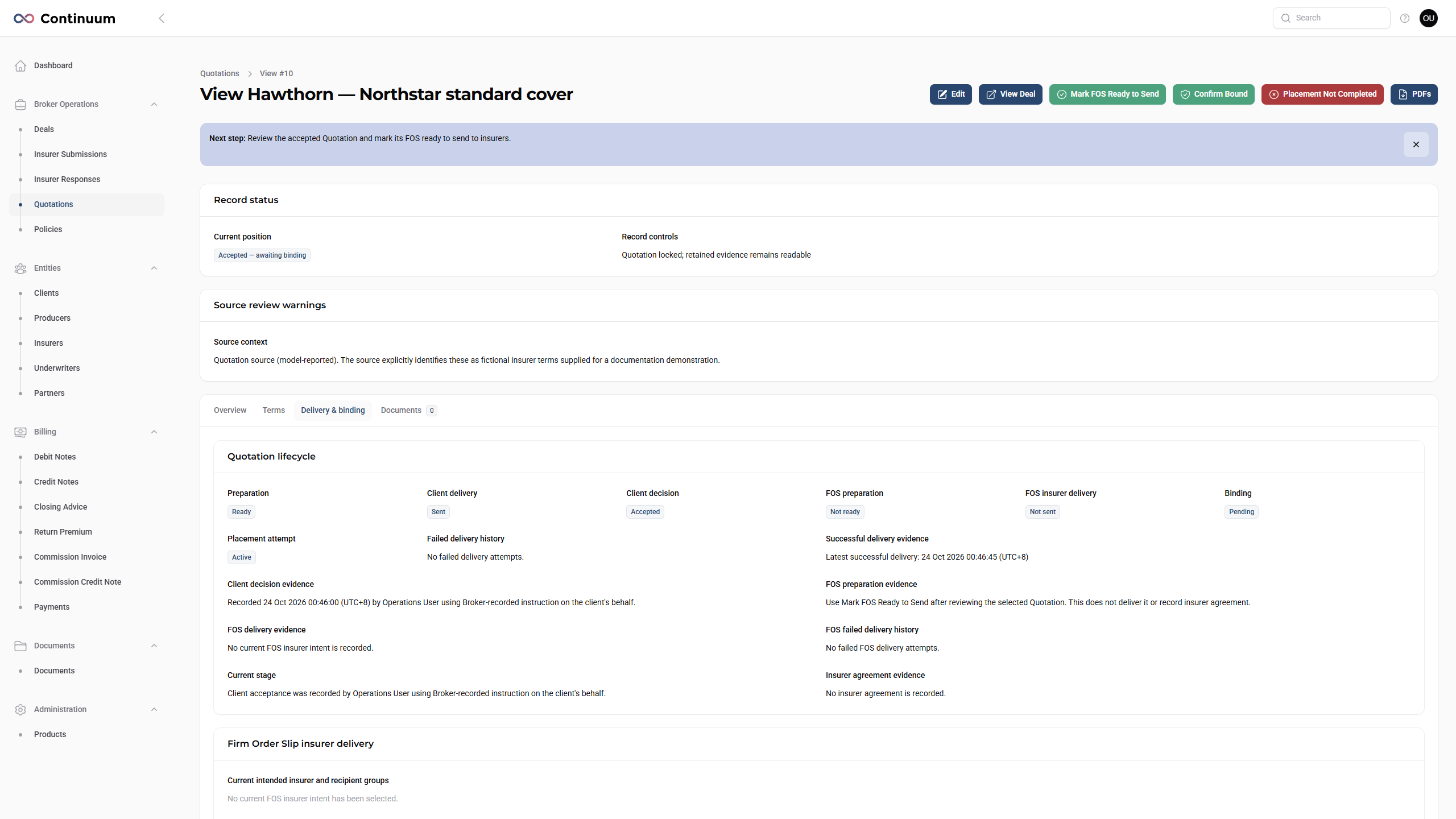
Select Quotation does not create a Policy or confirm insurer agreement. The recorded acceptance time remains the client's instruction time through later placement updates.
8. Send the FOS to the insurer
The Firm Order Slip (FOS) communicates the accepted instruction to insurers before binding.
- On the accepted Quotation, open PDFs → FOS PDF and check the proposed document.
- Choose Mark FOS Ready to Send and confirm preparation.
- Open Send FOS to Insurer. Select the insurer first, then its Underwriter recipients. Review supporting files, subject, message and separate-email count.
- Choose Send separate insurer emails once. Each insurer group receives confidential delivery. A retry skips groups with confirmed delivery.
- On Delivery & binding, check all required groups. Immutable insurer delivery history retains insurer, recipient, status, time and Outbound Message evidence.
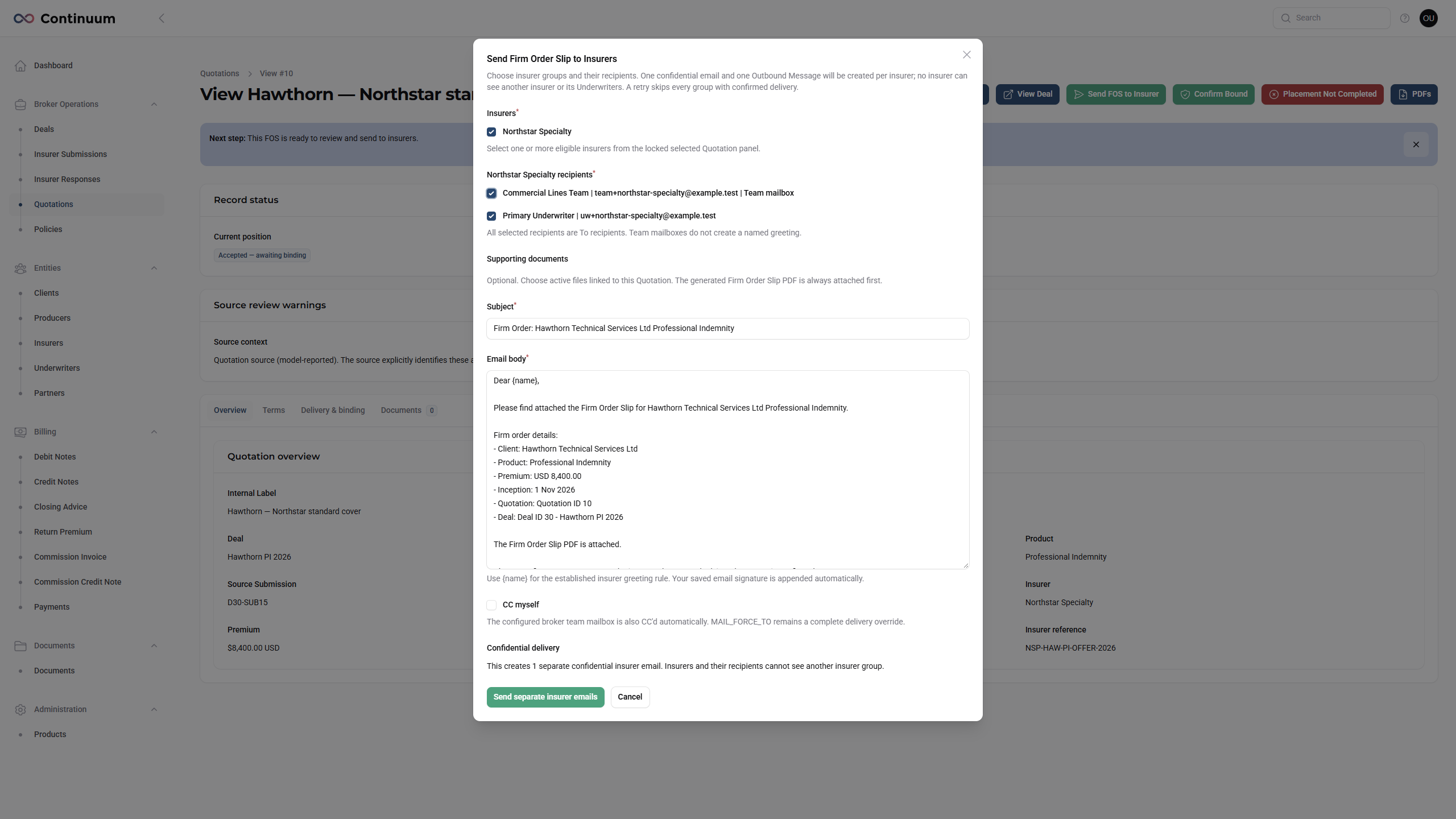
Check: delivery is recorded and actual insurer agreement is obtained. Sending the FOS alone does not bind the placement.
9. Confirm binding and complete the Policy
- After the insurer agrees, choose Confirm Bound on the selected Quotation.
- Check the independent Policy Internal Label and agreed bound Product Fields. Stored quoted values initialise these once; agreed changes or clears do not change the Quotation or Deal.
- Enter the actual bound date and verify inception/expiry dates.
- Enter one combined insurer confirmation note or upload one new agreement evidence file. The evidence must support the actual agreed placement.
- If asked for an overall FOS disposition, record the genuine external/skipped-delivery circumstances and explanation.
- Confirm. The platform creates the Policy and completes the placement attempt. The Deal's opportunity Status remains separate from Stage and the Policy outcome.
- Open View Policy → Edit. Check the lead insurer, dates and commercial amounts, and enter the insurer's Policy number/reference when available. Save changes.
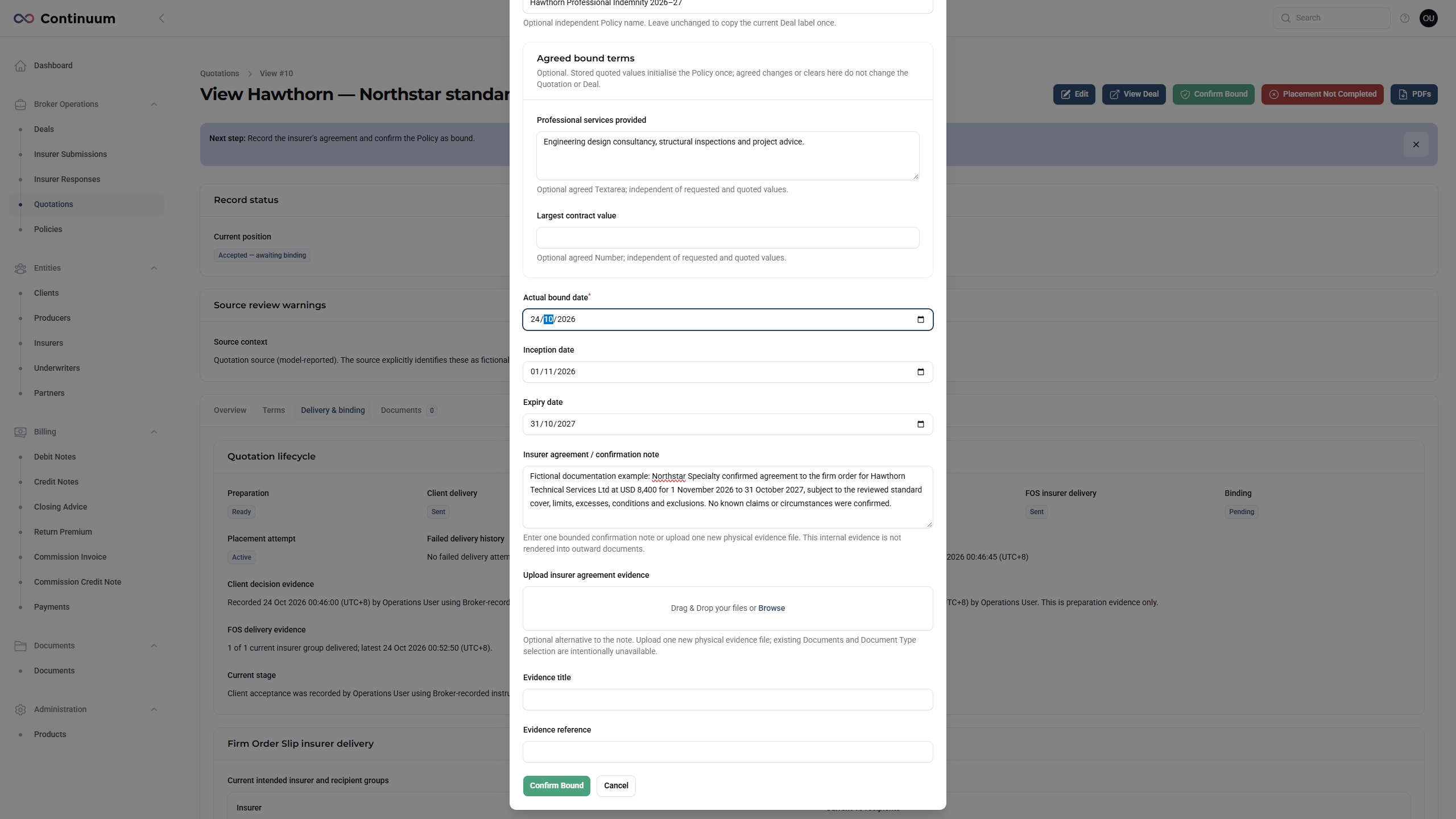
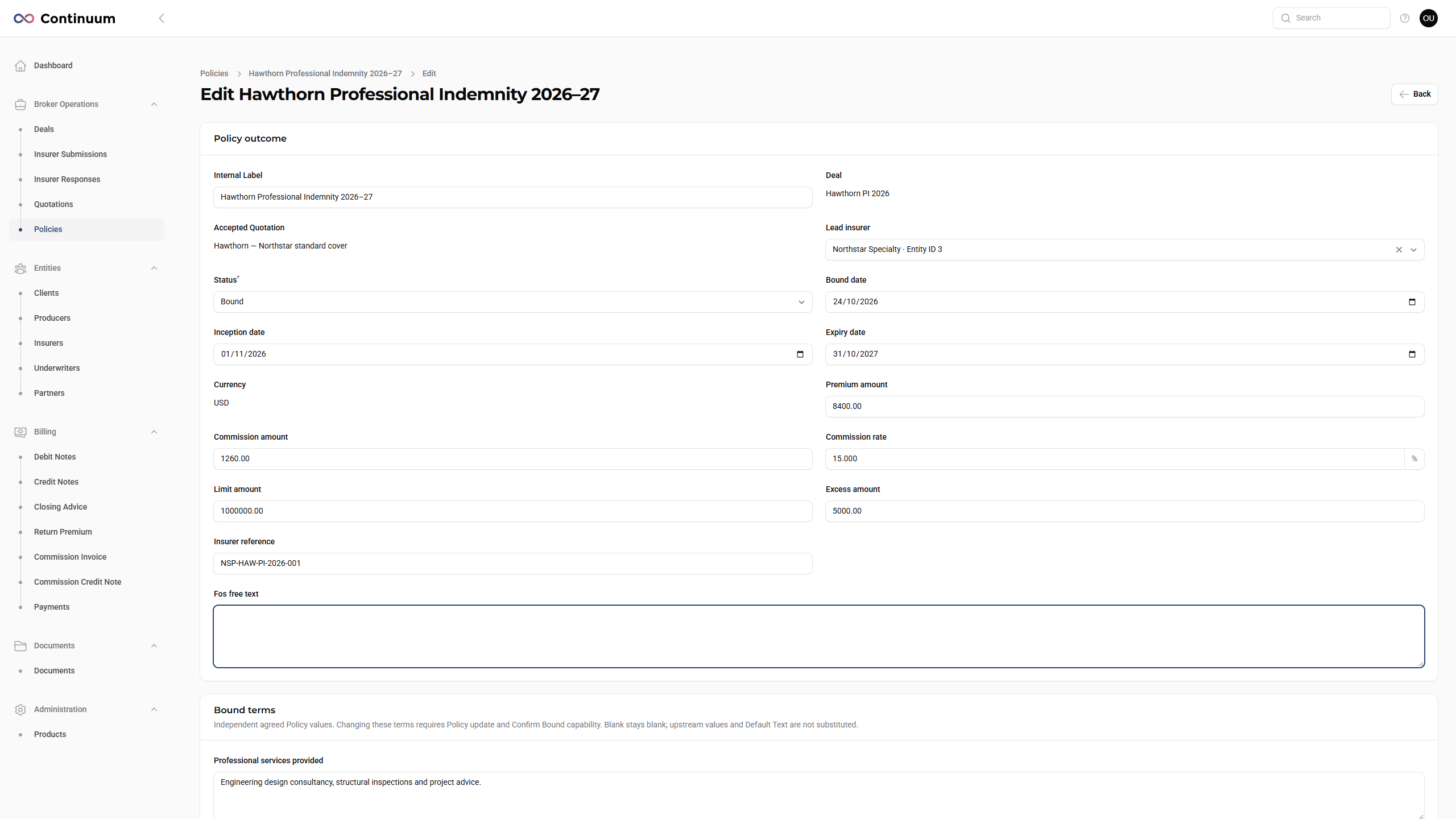
Policy currency comes from the Deal. Its Internal Label is independent. The normal path needs no second Create Policy action; the Deal's separate Create Policy route is for genuine off-system binding.
Check: the Policy links to the correct Deal and accepted Quotation and retains the actual binding evidence.
10. Deliver the Cover Note and Policy documents
10.1 Optional Cover Note
- On an eligible bound Policy, review PDFs → Cover Note PDF.
- If needed, choose Mark Cover Note Ready to Send and confirm.
- Choose Send Cover Note to Client. Review recipients, attachments and the email.
- Choose Send Cover Note and check the recorded result.
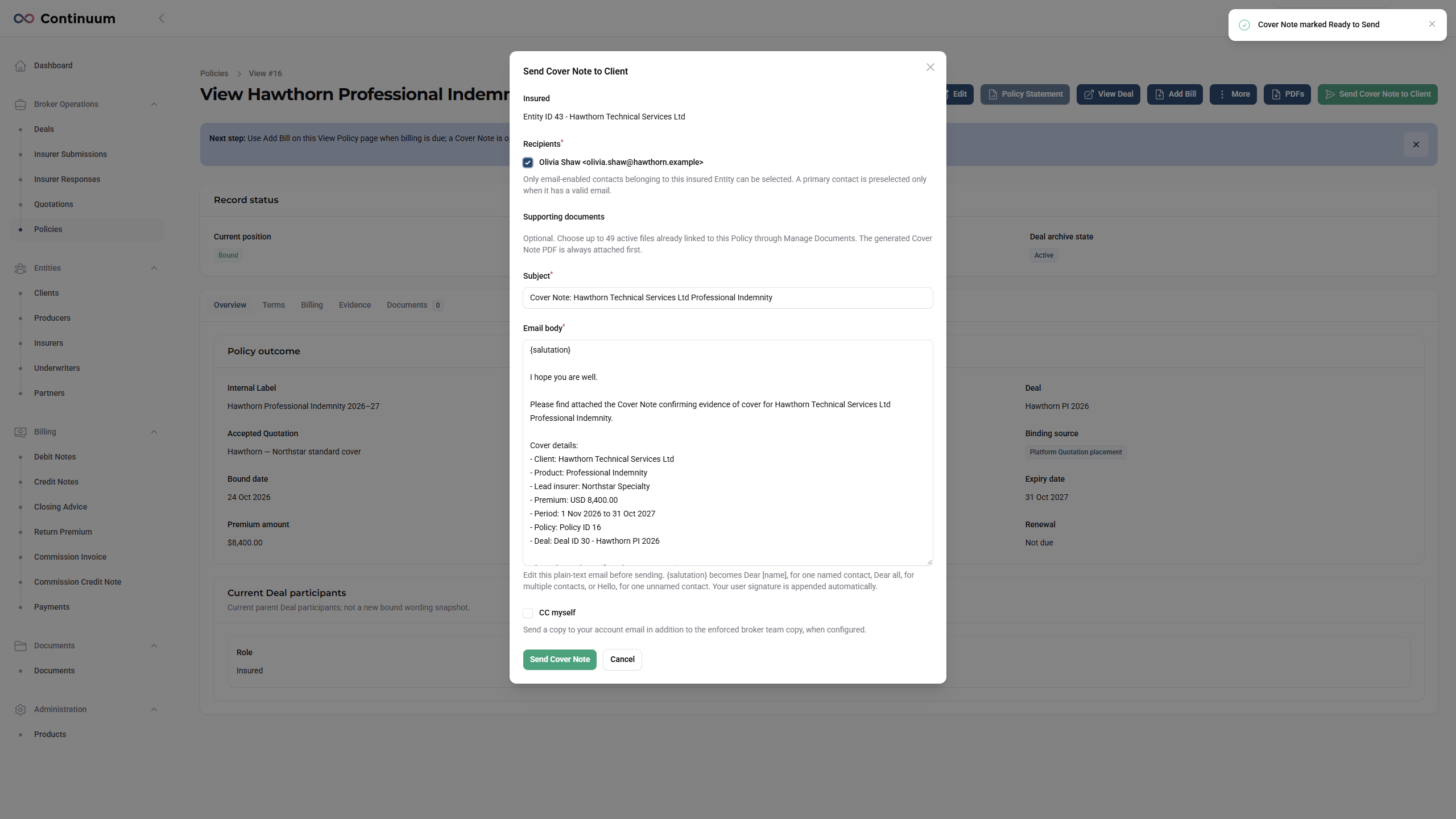
This document is derived from an eligible platform placement. It is unavailable for direct/off-system Policies. Preparing or sending it does not gate other Policy work.
10.2 Upload and send additional documents
- Open the Policy's Documents tab. Choose Upload new document or link an eligible existing Deal document.
- Upload the insurer's actual schedule, wording, endorsement or other file. Give it a clear title and choose the appropriate available Document type. The example uses Evidence / Supporting Document.
- Complete the upload. Use View/Download to verify the retained file, then open its Document record by selecting the title.
- Choose Send Document to Client. Check the exact filename, recipients and message, then choose Send document.
- Wait for the result before leaving. If the outcome is uncertain, check retained delivery evidence with an authorised history viewer before resending.
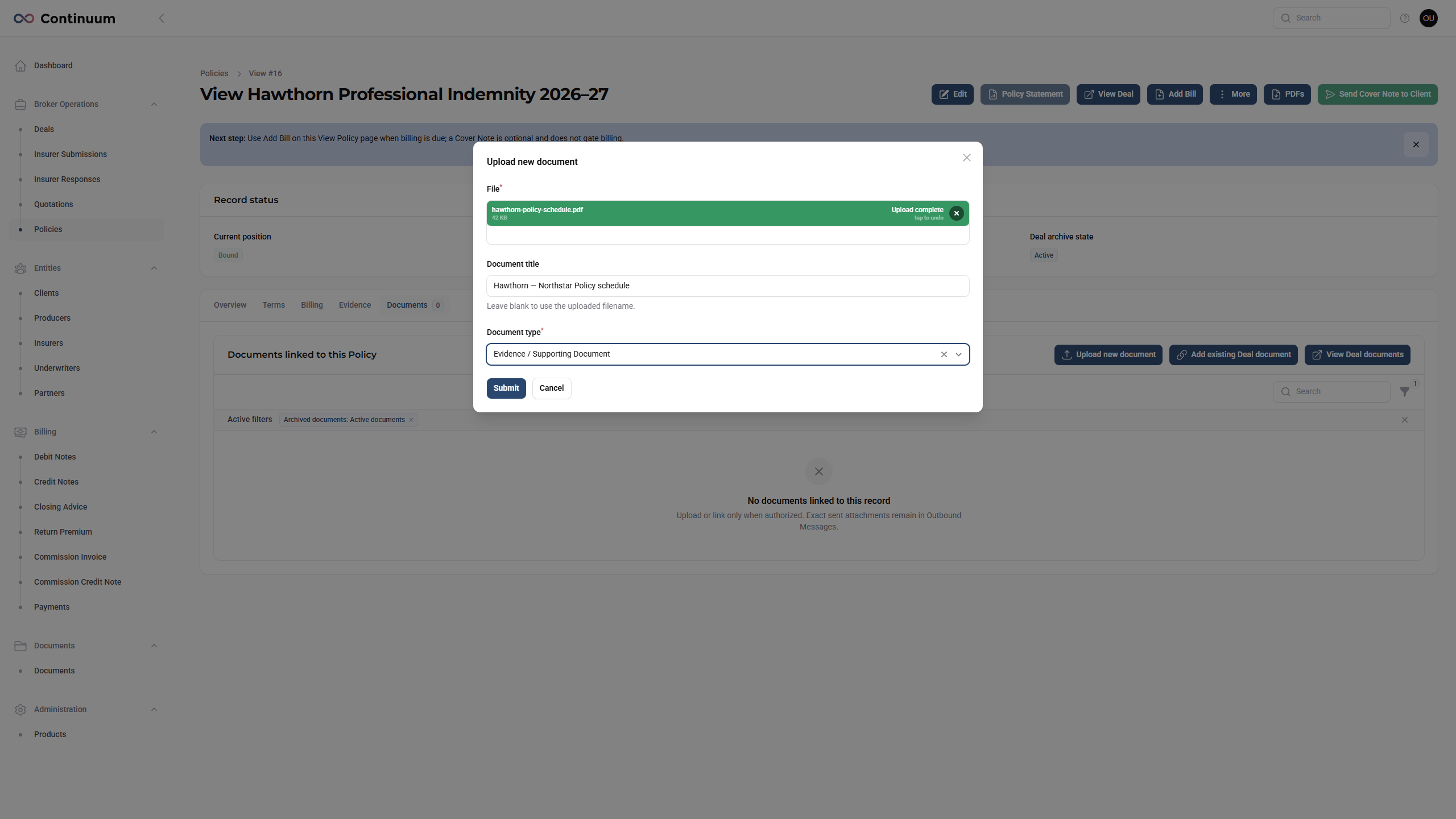
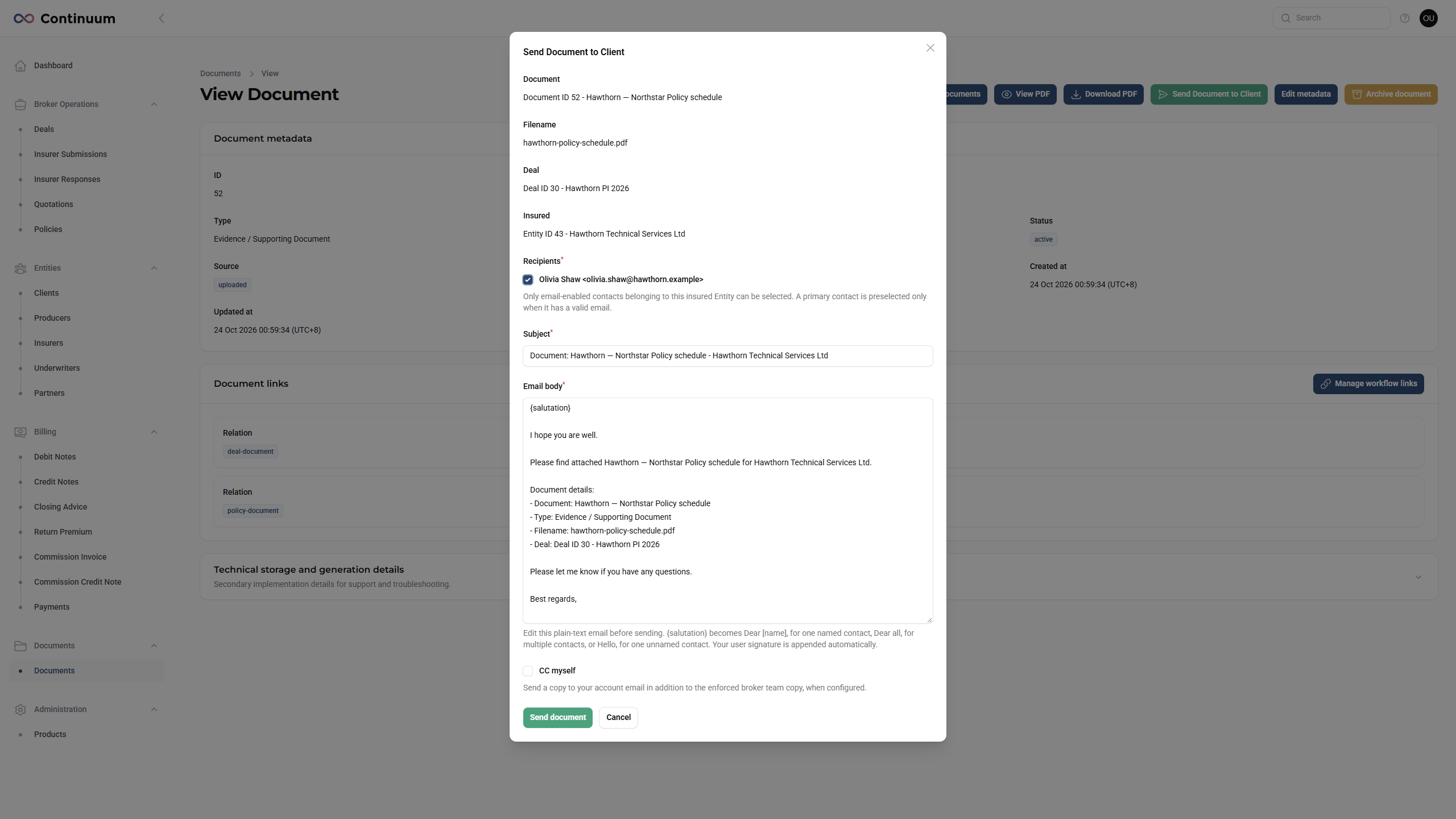
Uploaded files remain unchanged. Upload a corrected insurer file as a new Document and archive the earlier one where appropriate. Removing a workflow link or archiving a Document does not rewrite an earlier send.
11. Check completion and hand over
- The client, contact and insured are correct.
- The Submission and original insurer Response evidence are retained.
- The accepted Quotation agrees with the client's instruction.
- FOS delivery or a truthful permitted disposition is recorded.
- Insurer agreement and the actual bound date are recorded.
- The Policy has the correct links, dates, terms and insurer reference.
- The optional Cover Note has been handled if required.
- Required documents have been uploaded, checked and sent to the intended recipients.
- Outstanding insurer documents and follow-up commitments have a clear owner.
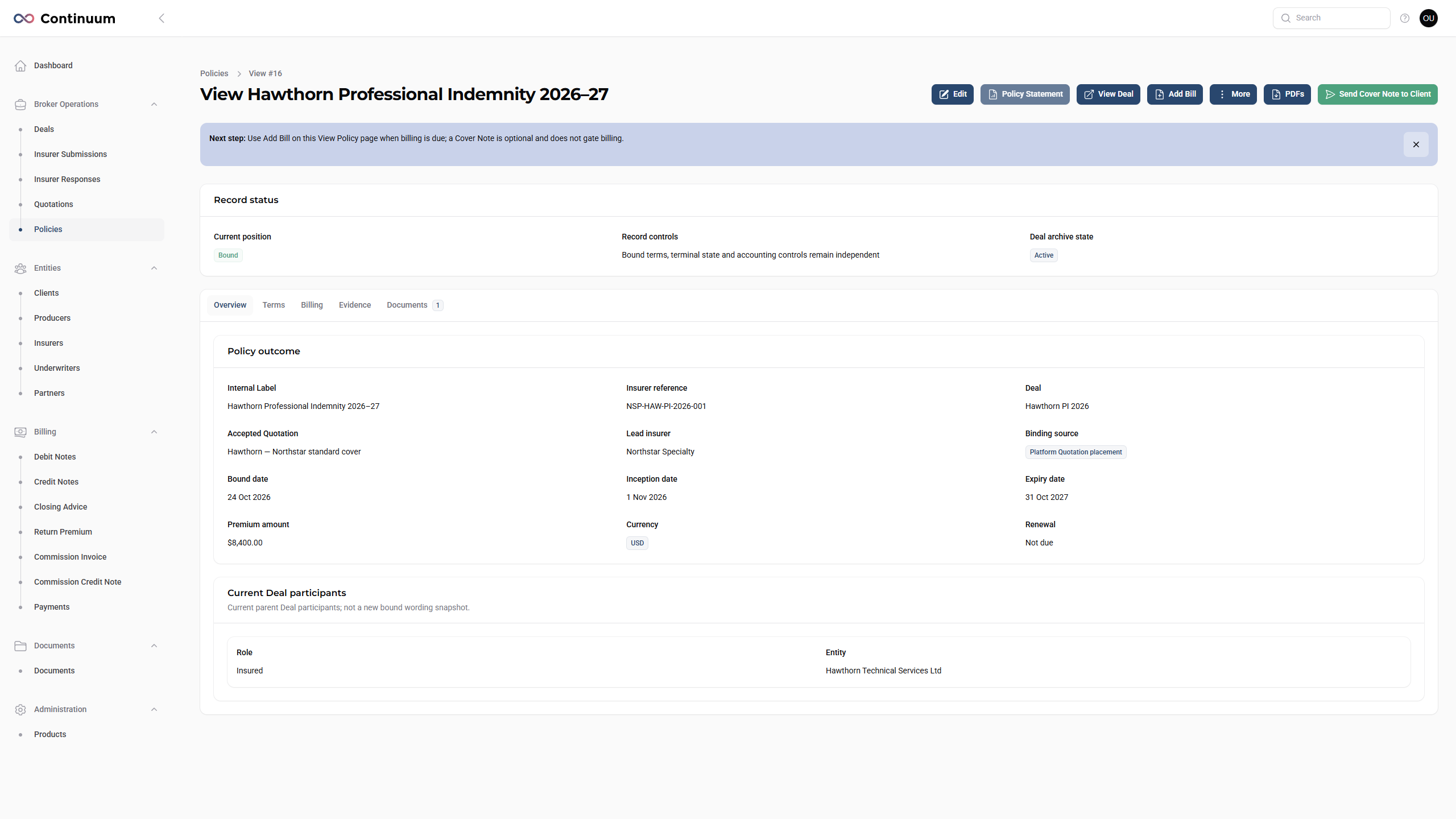
Hand the Policy and agreed commercial information to Accounting when billing is required. Do not delay that handover solely because an optional Cover Note has not been sent. The Accounting workflow is outside this guide.
12. Common questions and exceptions
| Situation | What to do |
|---|---|
| An action is missing or disabled. | Check permissions, archive state and record eligibility. Direct routes also depend on administrator settings. Next step guidance does not grant permission. |
| Mark Prepared fails. | Correct the reported outward content, market or recipient issue. Options Requested is required for the Submission. |
| An insurer is missing from Add Insurer Response. | Check that it belongs to the Submission and has a recorded send. |
| AI terms look wrong or the review needs reopening. | Check the original source and follow review and recovery guidance. A completed extraction still needs human checking. |
| A send fails or only some insurer groups succeed. | Inspect retained outcomes and recipients first. Resolve the issue and retry deliberately; do not assume every group failed. |
| The client accepts outside the platform. | Record the actual instruction through Select Quotation, including any required delivery disposition. This workflow does not rely on a client acceptance portal. |
| Placement does not proceed after acceptance. | Use the authorised Placement Not Completed action with the actual reason/evidence. A closed attempt is not a bound Policy. |
| The Cover Note is unavailable. | Check placement eligibility and permissions. Direct/off-system Policies are ineligible; this does not determine Accounting readiness. |
| You need the exact PDF previously sent. | Use the retained attachment in authorised delivery/Outbound Message history. A fresh preview uses current data/templates and may differ. |
Use the top-bar Help icon for the current page. Operational views also provide Next step guidance; if hidden, it can be restored in My Account.