
← Documentation library · Policy Lifecycle
1. When to use this route
Use Create Policy on a Deal when insurer binding has genuinely been completed outside the platform Quotation/FOS workflow and you need to record the bound outcome.
This route creates a Policy directly from the Deal. It does not create a Submission, Response, Quotation or FOS history. The separate fictional Hawthorn example shows how to record that origin explicitly.
Before you begin
- Your administrator must have enabled direct Policy creation, and your account needs permission to create and issue Policies.
- Use an accessible, unarchived Deal without a Policy or active placement. Open, On Hold and Lost are opportunity classifications; none alone prevents otherwise eligible direct creation.
- Check the insured client, Product, currency and requested dates.
- Have the actual insurer agreement, agreed terms and the reason for recording off-system binding ready.
If you are still presenting an offer for client acceptance and insurer binding, use Deal to Quotation or the full Policy Lifecycle instead.
Example Deals address: https://your-platform-domain.com/admin/deals. Replace the placeholder domain with your own platform domain.
2. Record the binding evidence
- Open the Deal and choose Create Policy.
- Enter an optional independent Policy Internal Label.
- Check the Agreed bound terms. Requested Deal values are starting defaults; correct or clear them to match the actual insurer agreement.
- Confirm the acknowledgement that this records actual binding completed outside the platform Quotation/FOS workflow.
- Enter the Off-system binding reason. Explain why the binding is being recorded through this route.
- Provide exactly one evidence source: an Insurer agreement / confirmation note, or one new file in Upload insurer agreement evidence. Do not supply both. For an upload, add a useful Evidence title and reference.
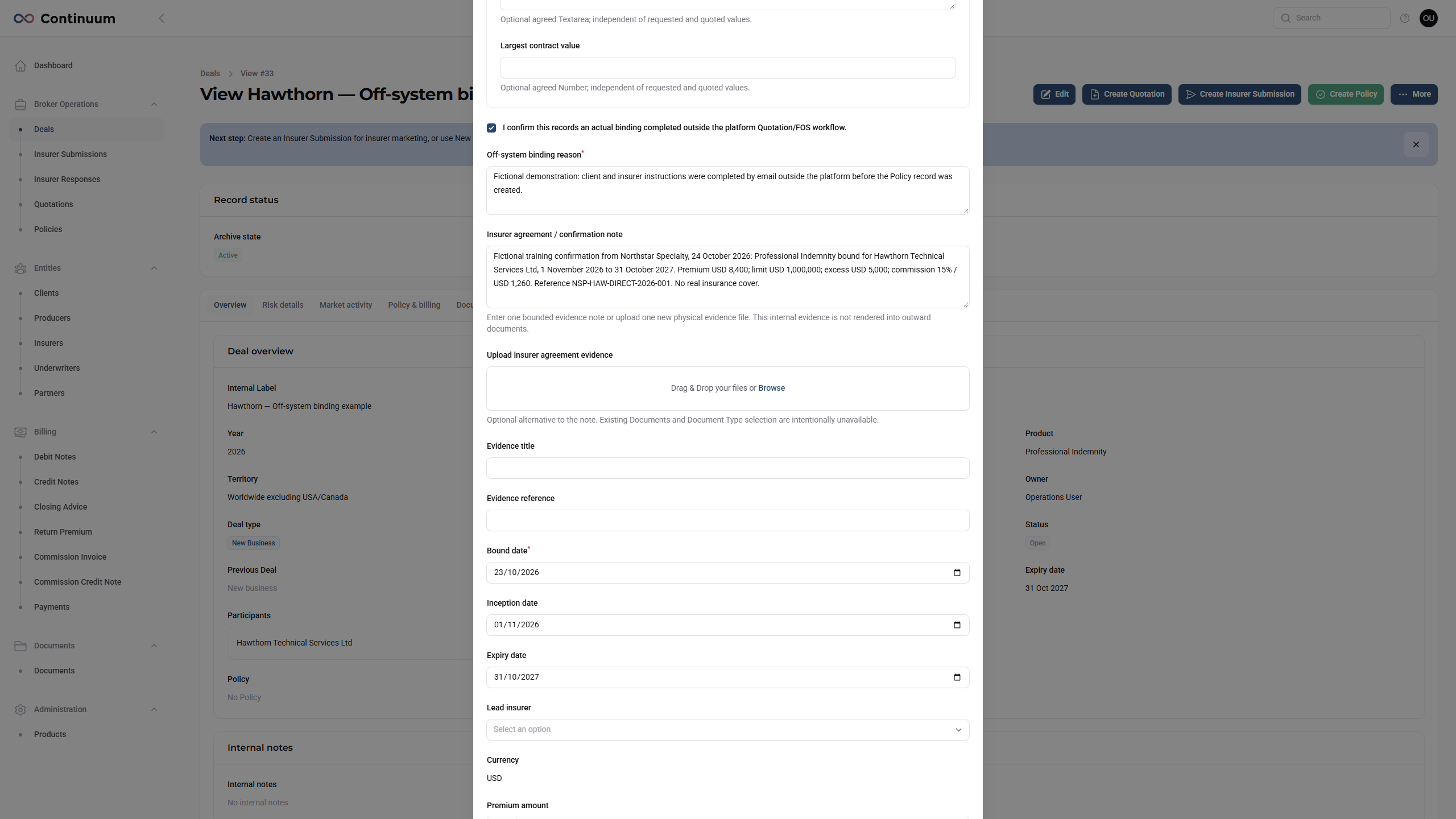
A previously linked Document does not satisfy this form's evidence requirement. Enter the actual confirmation note or upload one new physical evidence file. This internal evidence is not rendered into outward documents.
3. Confirm the agreed terms
- Enter the actual Bound date and agreed inception/expiry dates.
- Select the Lead insurer and check the currency inherited from the Deal.
- Record the premium, commission percentage and amount, overall limit and excess as applicable. These are Policy terms: check each entered amount against the agreement.
- Enter the insurer's Policy reference when available.
- Review the evidence and terms, then choose Submit.
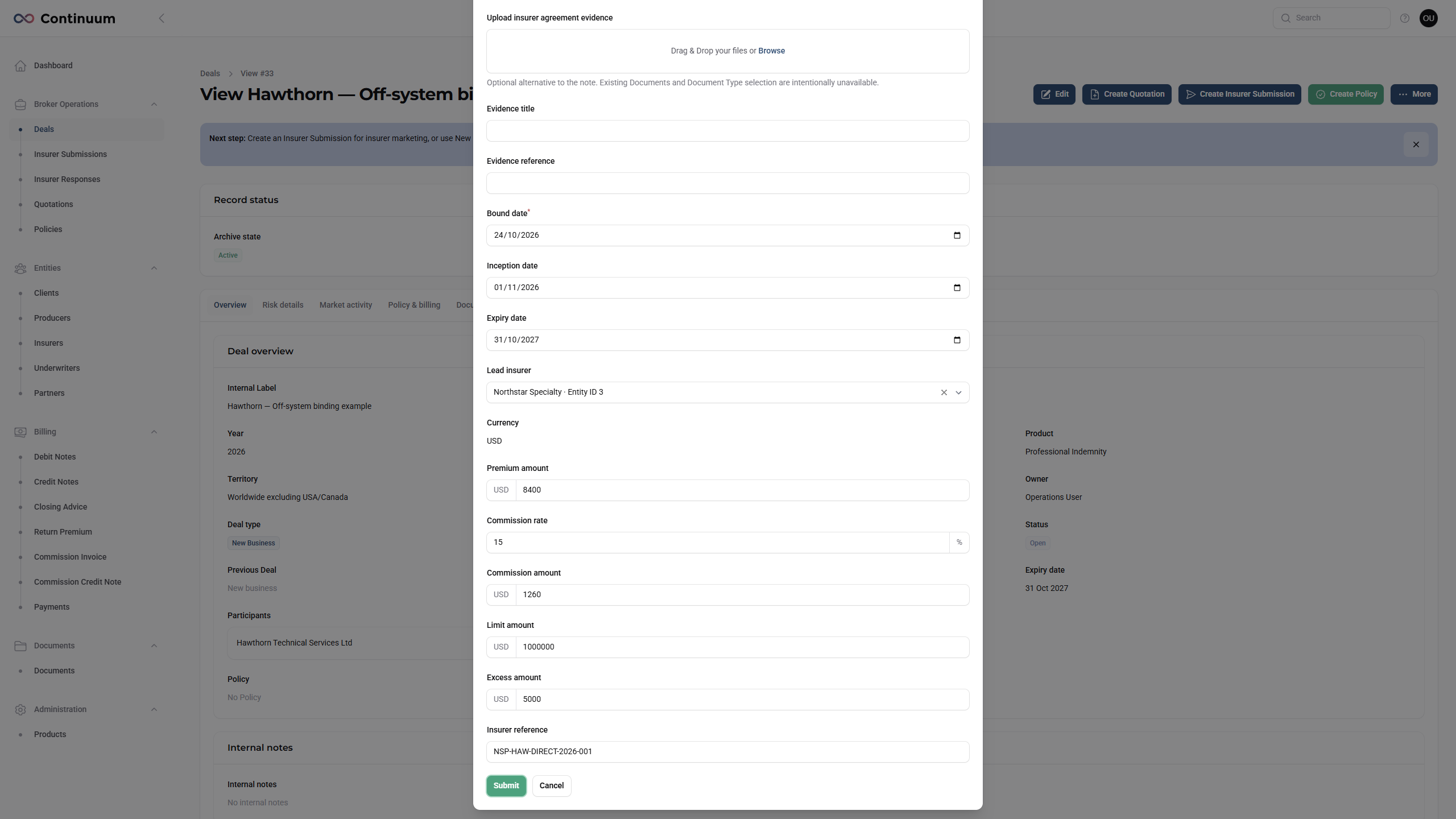
Wait for the success message and follow View policy. If the response is slow, check whether the Policy already exists before trying again.
4. Check and complete the Policy
- Check Overview: correct Deal, insured, insurer, Policy label, dates and commercial terms.
- Open Terms to check the agreed bound Product Fields.
- Open Evidence and verify the direct/off-system origin, recorded reason and insurer confirmation.
- Use Documents to retain the insurer schedule and related files. Review the exact original file and intended recipients before using Send Document to Client; see Policy document delivery.
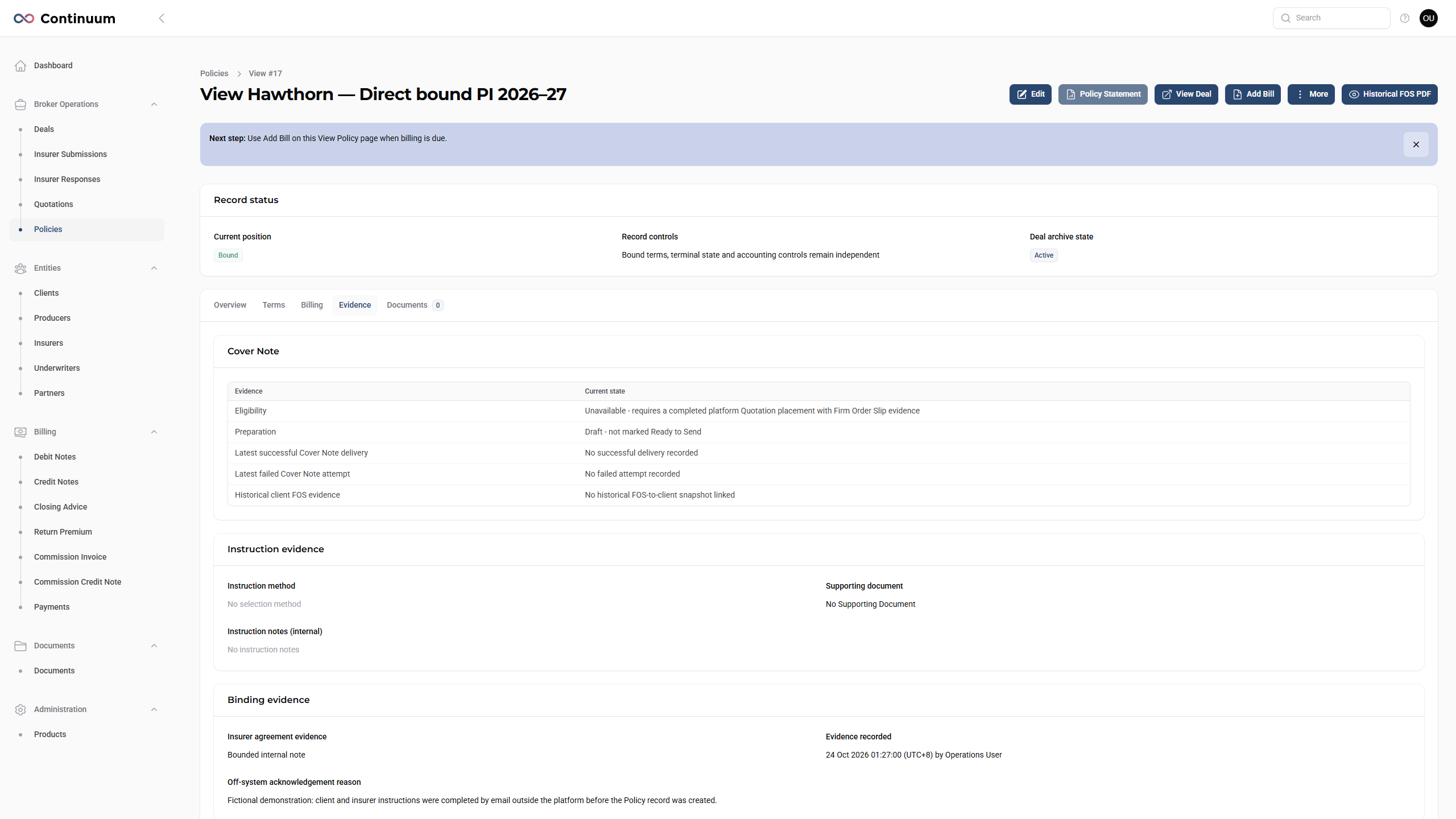
A direct Policy does not acquire the platform-generated Cover Note available after the normal accepted-Quotation/FOS binding route. You can still upload and send appropriate original insurer documents.
Check: one Policy records the actual off-system agreement, the correct Deal and insurer, reviewed bound terms and the retained evidence.
If Create Policy is missing or disabled, check the direct-creation setting, permissions, archive state and any existing Policy or active placement with your administrator.