
← Documentation library · Policy Lifecycle
1. When to use this route
Use direct Quotation creation when you already have insurer terms and do not need to send an Insurer Submission or record a Response first.
- Existing client and Deal
- Direct Draft Quotation
- Review and send
- Client acceptance
- FOS and binding
- Policy documents
This guide uses an alternative fictional Hawthorn Technical Services Ltd example. It demonstrates a separate route, not another step to repeat after the main example is bound.
Before you begin
- Your administrator must have enabled direct Quotation creation, and your account needs the relevant Deal and Quotation permissions.
- Use an unarchived Deal without a Policy or active placement. Open, On Hold and Lost are opportunity classifications; none alone prevents otherwise eligible direct creation.
- Check the insured client, primary contact, Product, currency and requested policy dates.
- Have the insurer's actual offered terms and original evidence ready.
For AI-assisted capture from a source file, follow Create with AI Intake. If the insurer replied to a platform Submission, create the Quotation from the genuine Response to retain that relationship.
Example Deals address: https://your-platform-domain.com/admin/deals. Replace the placeholder domain with your own platform domain.
2. Create the Quotation
- Open the existing Deal and choose Create Quotation.
- Check the selected Deal. The form identifies this as a Standalone Quotation.
- Select the insurer and enter a useful Internal Label for the option.
- Review Status, Received date, Valid until and the displayed Deal currency. Replace date defaults with the actual insurer dates where needed.
- Enter the premium and Commission %. Check the calculated Commission Amount.
- Enter an explicit overall limit and excess where appropriate, plus the insurer's reference. Keep broker-only notes in Internal Notes.
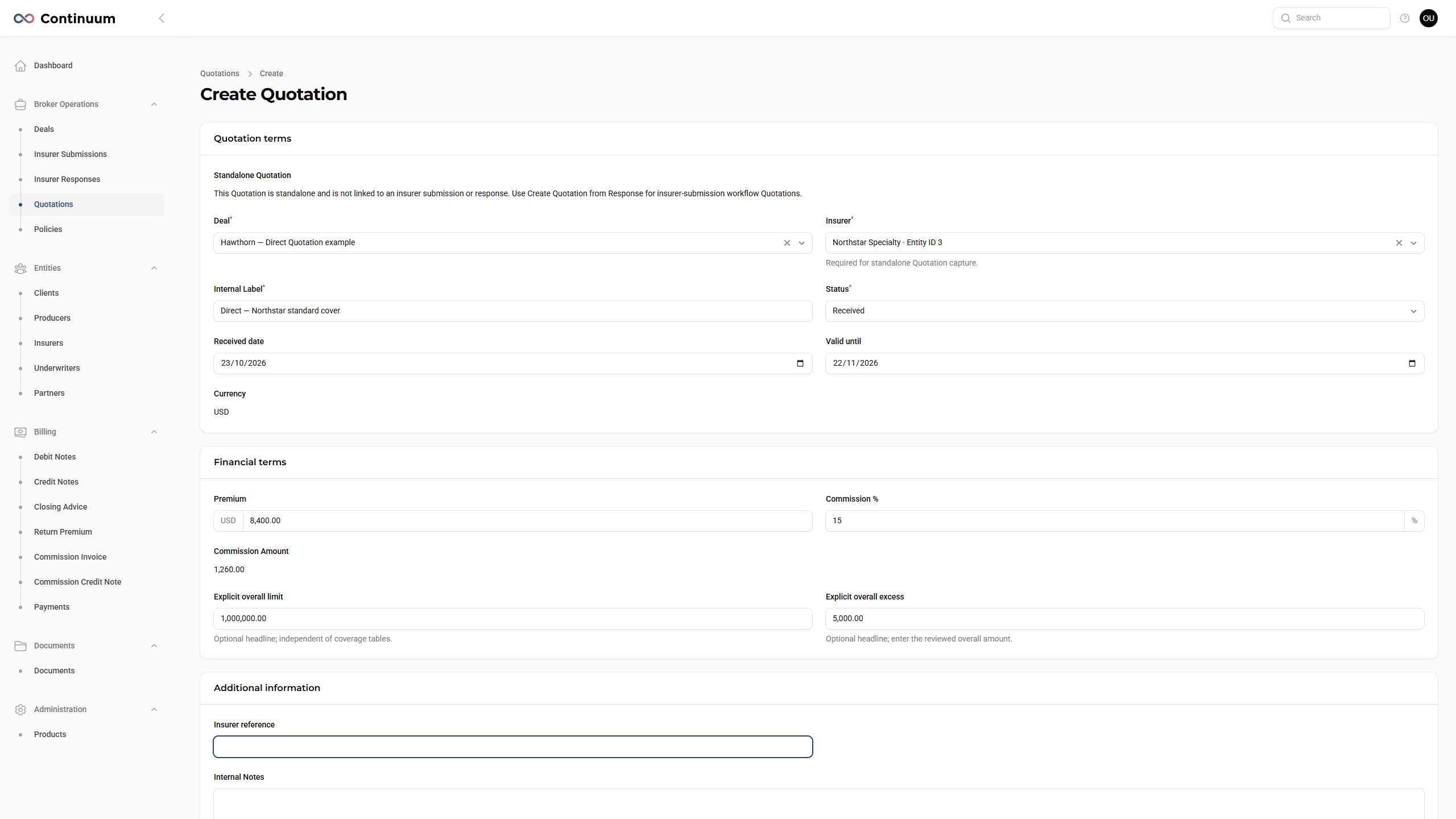
Commission Amount follows the premium and percentage. For example, USD 8,400 at 15% produces USD 1,260. Correct the source inputs if that result is wrong; there is no separate Quotation commission-amount override.
3. Review terms and evidence
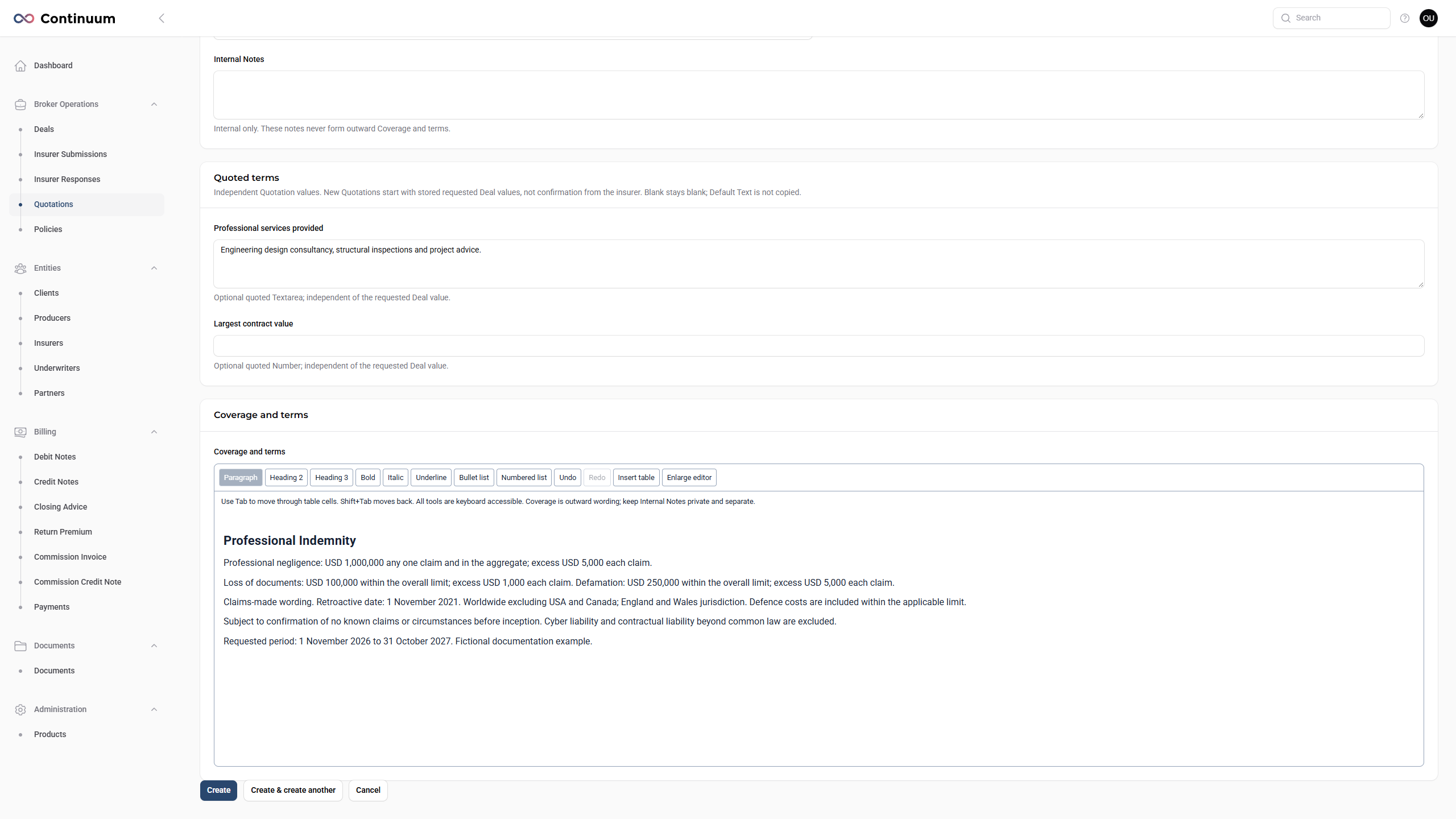
- Review the independent Quoted terms. Requested Deal values may initialise these fields, but do not establish that the insurer agreed them. Correct or clear them as appropriate.
- Complete Coverage and terms using the actual insurer wording. Include applicable sublimits, excess qualifications, conditions, exclusions, territory and jurisdiction. Use the editor's headings, lists and tables where useful.
- Keep the overall limit/excess consistent with the offer. Those optional headline fields do not replace the detailed wording.
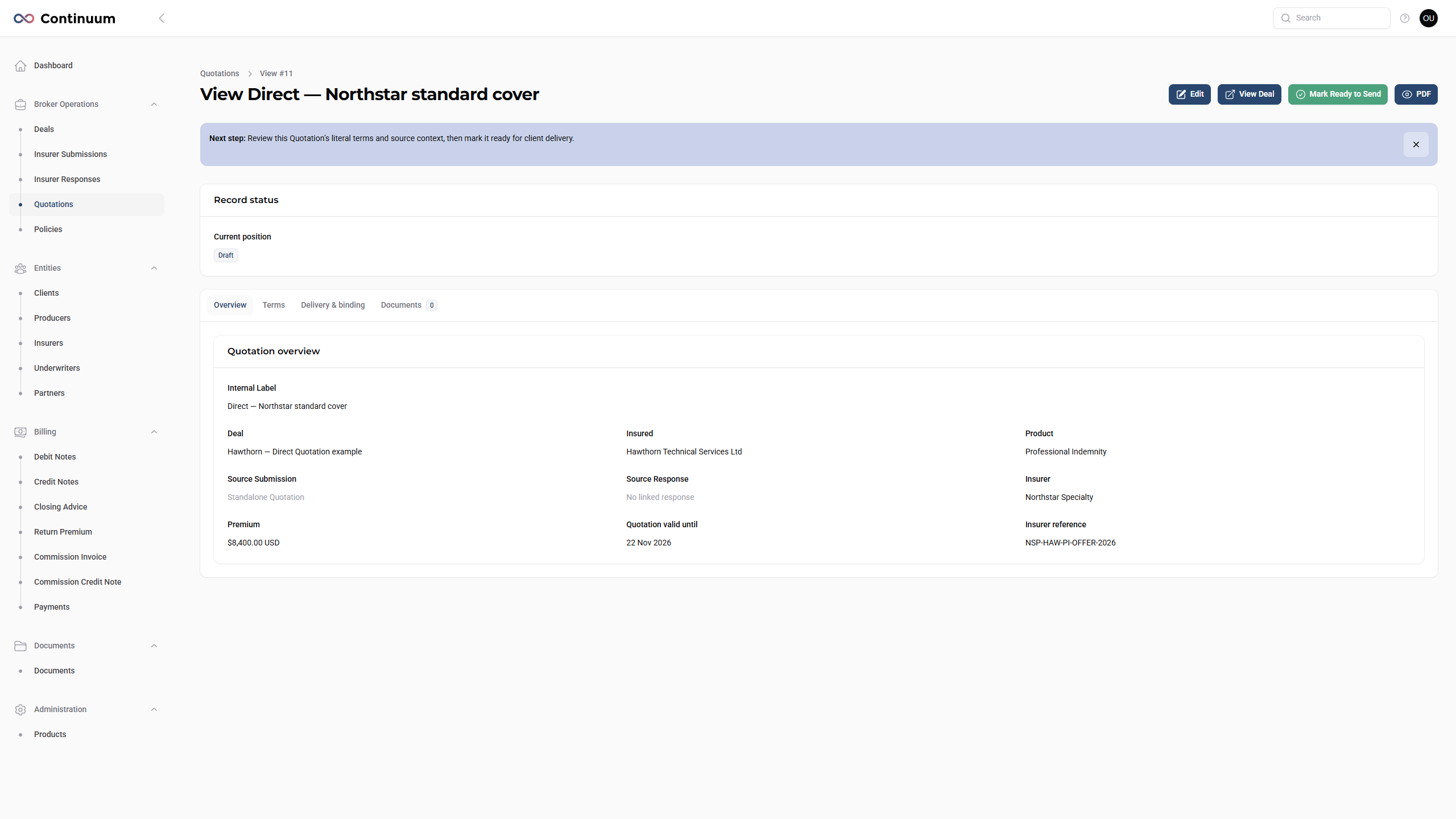
- Select Create. Check the saved Overview and Terms tabs and open PDF to review what will be presented to the client.
- Use Documents to retain relevant supporting evidence. Upload a new document or link an eligible existing Deal document. Linking it does not automatically send it; review attachment choices in the send form.
4. Continue the placement
Follow the main guide from Send Quotations and record client acceptance: mark the reviewed Quotation ready, send it to the client, record the actual acceptance, prepare/send the FOS, then record insurer agreement and confirm binding.
The direct origin does not skip those later steps. Confirm Bound creates the Policy. If binding was genuinely completed outside that workflow and you only need to record the outcome, use the separately authorised Deal to Policy route instead.
Check: the correct Deal, insurer and reviewed option are saved, original evidence is retained, and the next step is preparation for client delivery.
If Create Quotation is missing or disabled, check the direct-creation setting, permissions, archive state and any existing Policy or active placement with your administrator.