
← Documentation library · Policy Lifecycle
1. Choose the starting point
AI capture prepares editable Quotation terms from insurer evidence. You remain responsible for checking the complete offer before saving, preparing or sending it.
| Your starting point | Action | Source relationship |
|---|---|---|
| An insurer replied to a platform Submission. | Open its saved Response and choose Create Quotation. | The Quotation retains that genuine Response and Submission context. |
| You already have insurer terms, without a platform Submission/Response. | Open Quotations and choose Create with AI Intake. | Select the existing Deal and insurer of record; upload the direct source. |
| You want to enter the terms yourself. | Follow Deal to Quotation. | Manual direct creation does not require an AI request. |
The direct route must be enabled by your administrator. It needs an accessible, unarchived Deal without an existing Policy or active placement, and the relevant Quotation permissions. Check the Deal's insured, Product, currency and requested dates first.
The fictional examples use Hawthorn Technical Services Ltd. Use your organisation's actual insurer evidence. Example Quotations address: https://your-platform-domain.com/admin/quotes. Replace the placeholder domain with your own platform domain.
Completion does not confirm that every fact was recognised correctly. Check the original file, qualifications, tables, conditions and exclusions. Saving a Quotation does not send it, record client acceptance or bind cover.
2. From an Insurer Response
- Open the genuine Response recorded against the sent Submission. Check its insurer, received date and source evidence.
- Choose Create Quotation. The platform queues extraction from that Response.
- Wait for the result. Extraction continues in the background; you can revisit the same review address.
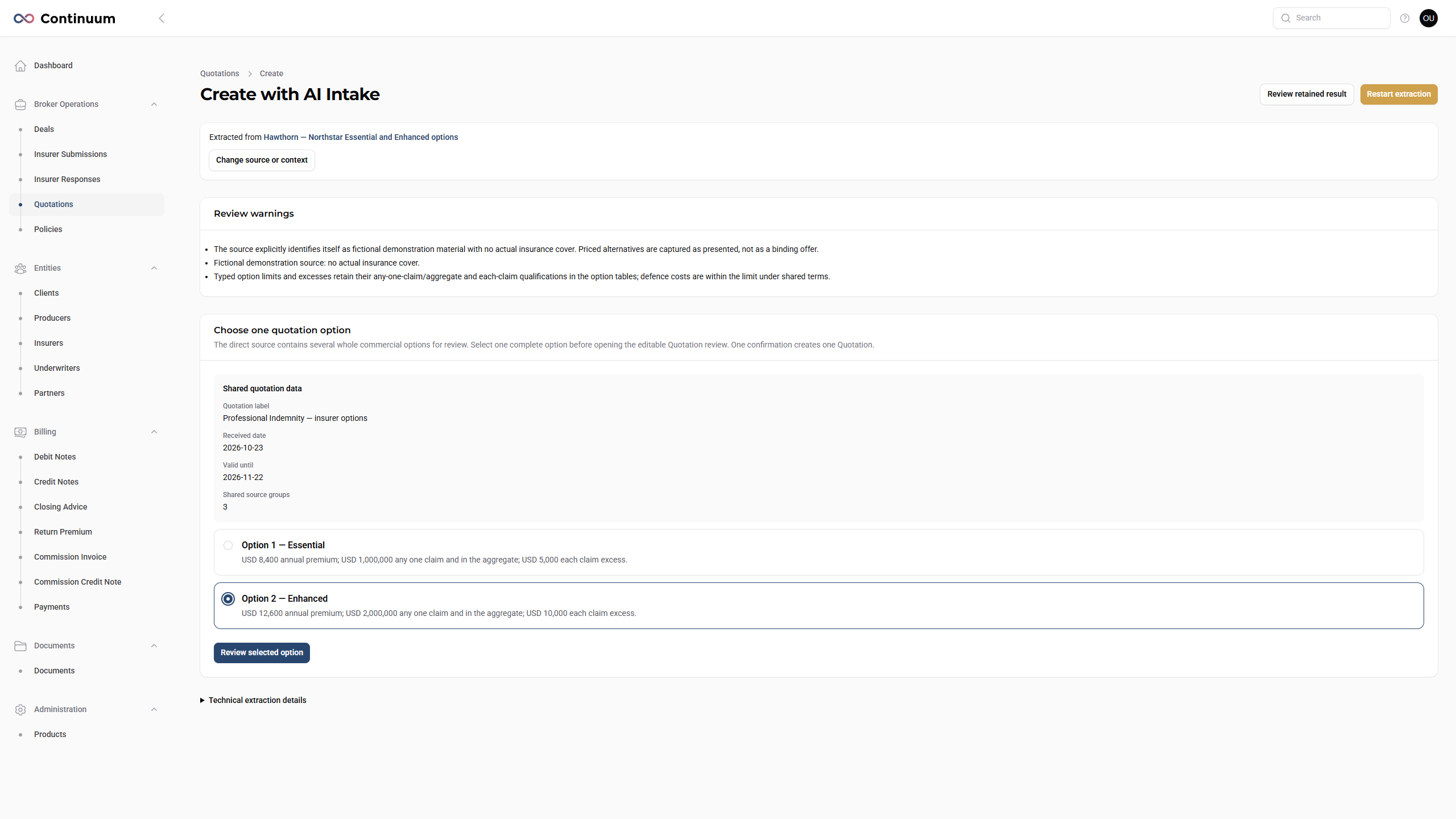
- If several complete commercial options are found, select the intended option and choose Review selected option. A single offer may open directly in the editable review.
- Complete the checks in Review and save.
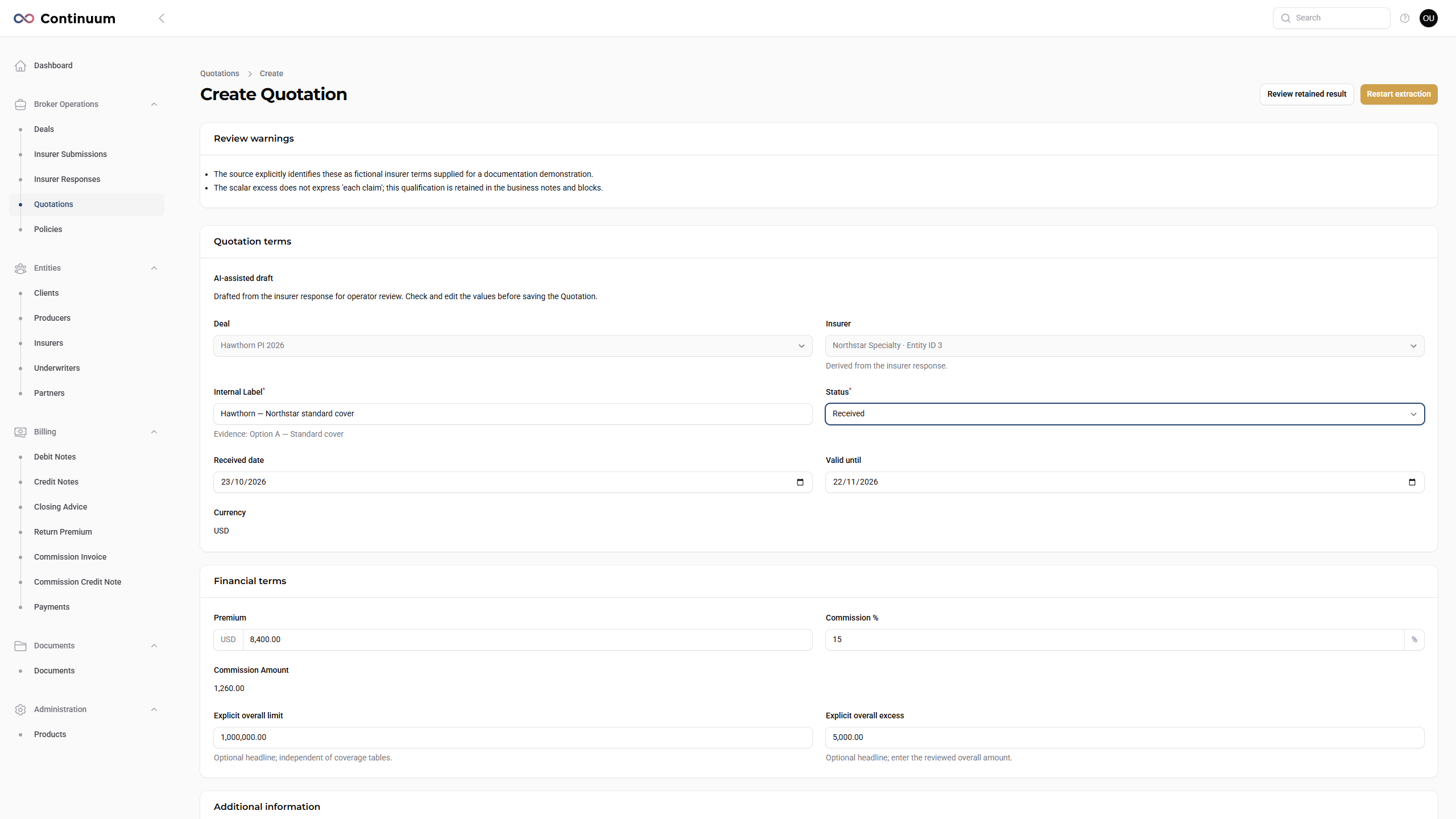
Keep the original insurer reply as evidence. Word response documents must be converted to PDF before upload. Use clear English source material within the supported capture scope.
3. From a direct source upload
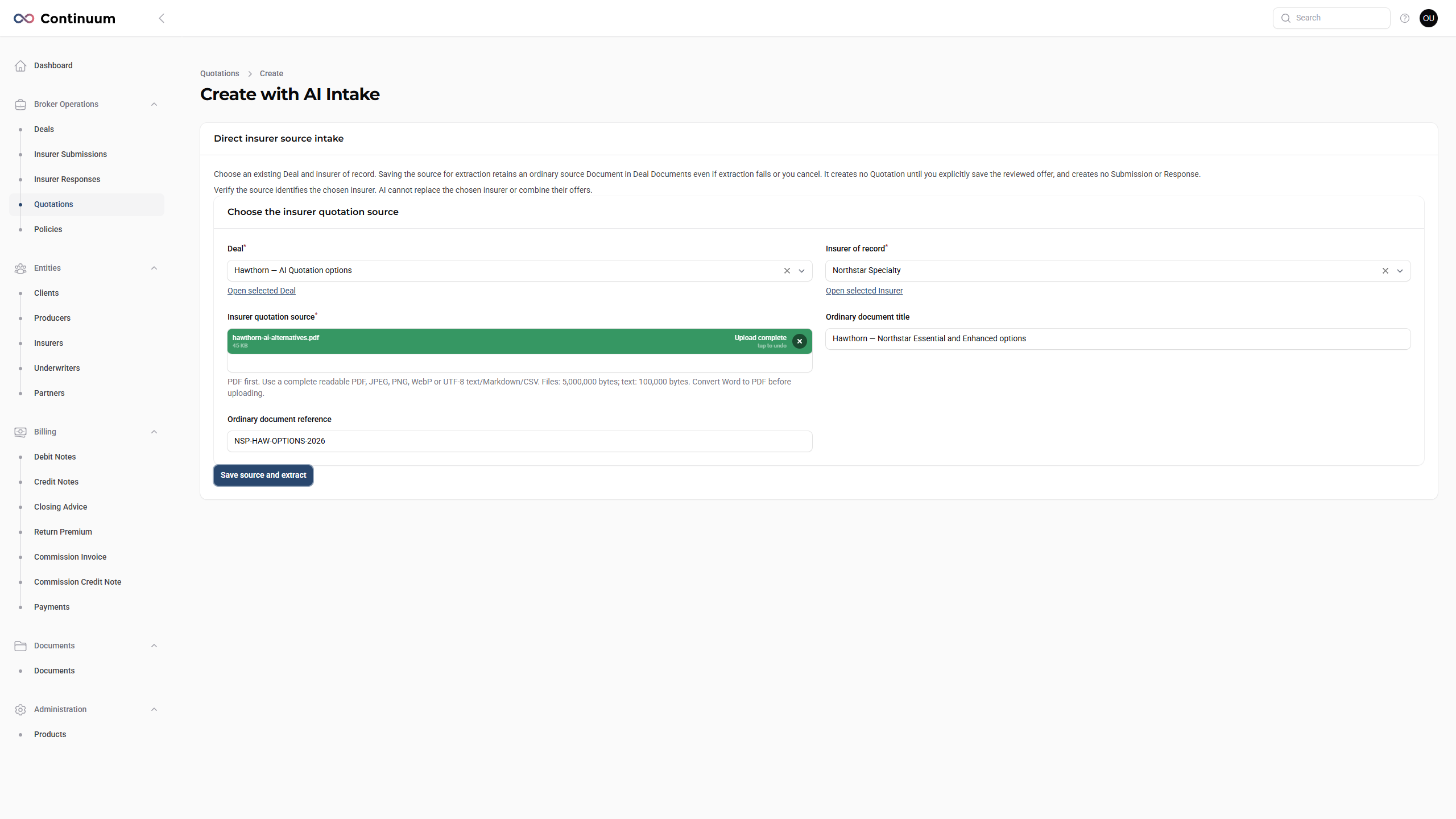
- Open Broker Operations → Quotations and choose Create with AI Intake.
- Select the existing Deal and the Insurer of record. This is your deliberate insurer choice; AI does not replace it.
- Upload the insurer's source document, preferably a clear PDF. Add a useful source title and reference. Convert Word documents to PDF first.
- Choose Save source and extract and wait for the review. If the document contains several offers, choose one complete option and select Review selected option.
- Review the selected offer and save one Draft Quotation. Repeat deliberately for a further option if needed.
The original source remains as an ordinary Document on the Deal, even if extraction fails or you cancel. No Quotation exists until you explicitly save the reviewed offer. This route creates no Submission or Response. If a document contains different insurers, verify the chosen insurer of record and do not combine their offers into one option.
4. Review and save
- Read the review warnings and compare the selected offer with its original source.
- Check the Internal Label, received date, validity, insurer reference and currency. Use a label that distinguishes this option.
- Check the premium and Commission %. Commission Amount is calculated from those values; it is not a separate amount to override.
- Check the optional Explicit overall limit and Explicit overall excess. Headline amounts do not replace sublimits, excess qualifications or the detailed coverage table.
- Review Quoted terms. Stored requested Deal values initialise a new Quotation, but are not proof of insurer confirmation. Correct or clear them deliberately. The saved Quotation values are independent of later Deal edits.
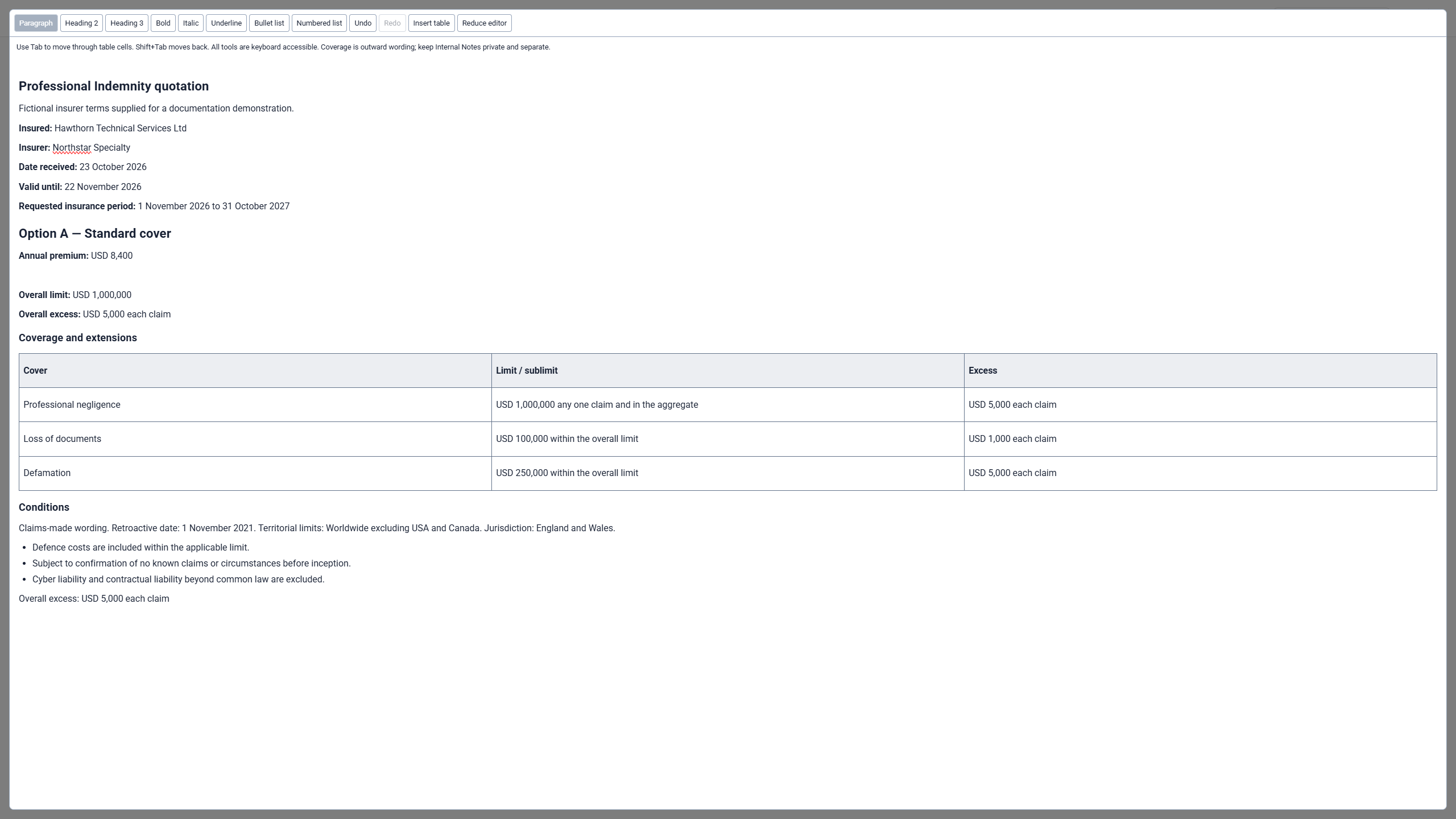
- Read the complete Coverage and terms document. Use Enlarge editor for tables and longer wording. Check conditions, exclusions, dates, territorial limits and jurisdiction. Keep broker-only material out of this outward wording; use Internal Notes for internal context.
- Choose Reduce editor when finished, then Create. Check the saved Overview and Terms tabs and review the generated PDF.
Check: one reviewed Draft exists, its source relationship is correct, and the saved terms agree with the intended offer.
Continue with preparation, client delivery and acceptance, then FOS and binding. These steps are the same whether the Quotation originated from a genuine Response or direct intake.
5. Resume or recover a review
- Queued or Extracting: revisit the same review address. Do not start another extraction simply because the first one is still running.
- Review retained result: where offered, reopen the completed result. If the original context has changed, the platform may require independent review of the retained document under the current settings. Recheck dates, money and typed fields; earlier AI values may not be applied automatically.
- Restart extraction: starts another AI request. Use it deliberately when a fresh extraction is needed.
- Capture could not complete: review the reported problem. Use the available manual capture route or restart after correcting the source/context. Do not assume partial terms were adopted.
- Changed or archived Deal: resolve the current workflow restriction before saving. A retained review does not bypass record access, archive state or placement rules.
Technical extraction details are available for investigation. They are separate from the outward coverage wording and are not a replacement for source review.